Configuring stages and approvals
These settings decide the order in which a product moves through stages and what must be approved before it leaves each stage. This document covers what you need for the first setup.
Distinguishing three similar names
| Name | What it defines | Where |
|---|---|---|
| Product stages | Set the order of a product's stages and the grouping of each stage | Project → Product stages |
| Approval types | Set which approvals a product can get | Project → Approval types |
| Approvals per stage | Set the approvals required at each stage before the product moves to the next stage | Default stages of an approval type, or Approvals per stage in the product details |
Set them up in this order: create the product stages, create the approval types, then assign the required approvals to each stage.
If no approvals are assigned to a stage, a product can move to the next stage with no approval condition. If approvals are assigned, all required approvals of that stage must be done before the product moves on.
Changing Product stages and Approval types requires Project operations settings permission. A workspace admin or that Project's project administrator selects an assignee for a role with this permission in Project → Roles and assignees and saves. Workspace owners and company administrators cannot change these settings unless they hold the business role.
In the Workspace left menu, Business roles is where workspace admins manage role names, permission combinations, and default assignees for new projects. Default assignees are automatically assigned when you create a new project. For a project that already exists, select the assignees in that project's Roles and assignees and click Save before the permissions take effect. One person may be assigned to multiple roles. Being a workspace admin does not itself grant Project operations or approval permissions.
1. Product stage settings
Projects → Product stages
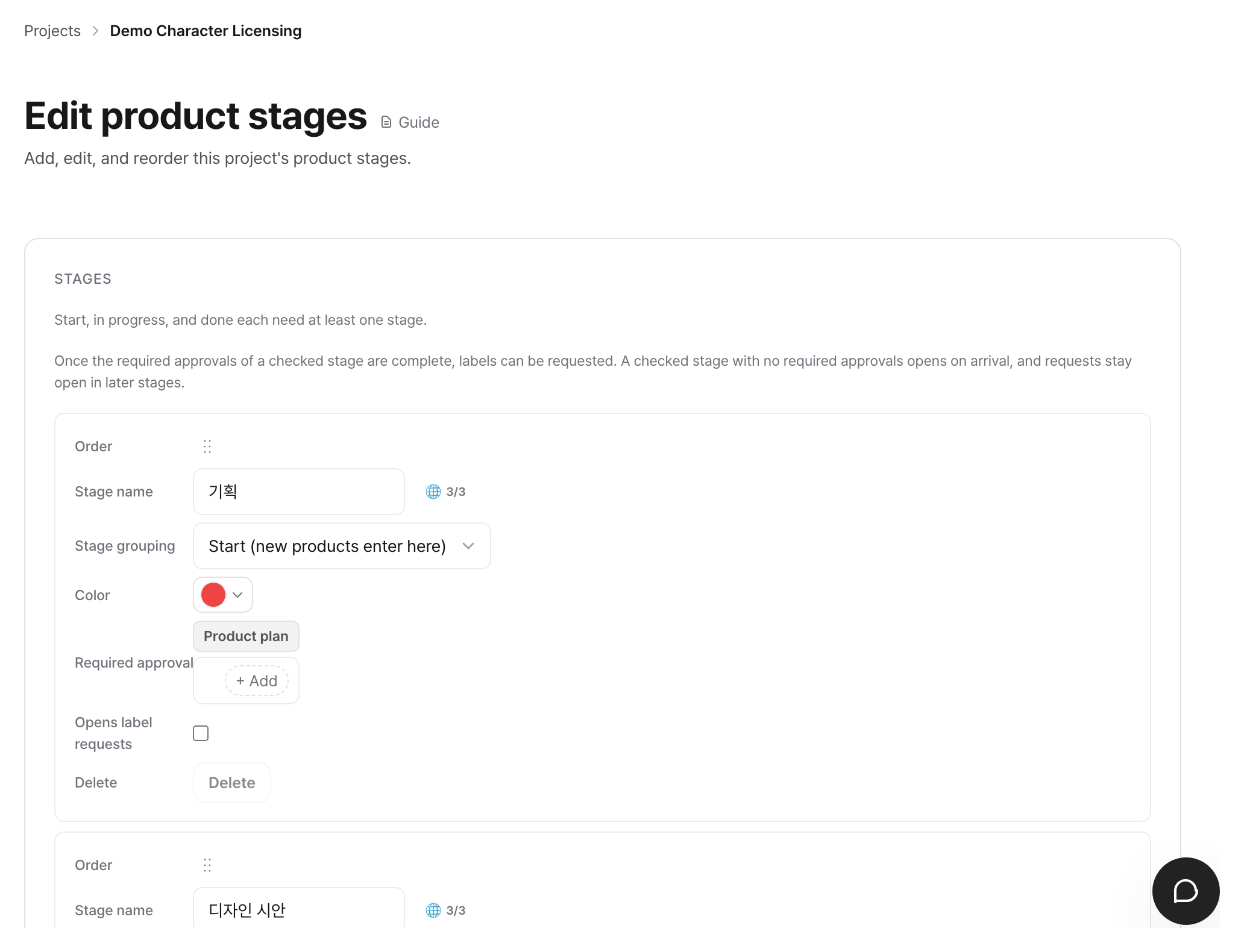
When you create a project, six stages are automatically included.
| Stage | Stage grouping |
|---|---|
| Planning | Start |
| Design draft | In progress |
| Sample production | In progress |
| Mass production | In progress |
| Launched | Done |
| On hold | On hold |
You can rename stages freely, and add or delete stages. Each project can have its own stages.
There are four stage groupings, and they are fixed: Start, In progress, Done, and On hold. Unlike names, the grouping affects how a product behaves.
- Start: new products begin at the first stage of this grouping. Reordering stages does not change the starting stage, which is decided by the grouping.
- In progress: an intermediate stage.
- Done: when a product reaches a stage of this grouping, its status becomes Confirmed.
- On hold: it is outside the sequence. Moving a product into or out of it does not depend on order or approvals.
Start, In progress, and Done each need at least one stage, so you can't delete the last one. There is no such limit for On hold stages, so you can delete them.
If the stage you are deleting has products, a confirmation window opens when you save, and those products move to the stage just before it. Then the stage is deleted. The very first stage can't be deleted, because there is no earlier stage to move its products to. A stage that still has approval items or stage move history isn't removed completely. It moves down to Archived stages and leaves the list.
Stages that open label requests
In Edit product stages, check Required for label requests on each stage. A new project starts with every stage before the Done stage (the Start and In progress stages) checked.
Once all required approvals of the checked stages are approved, labels can be requested. The product's current stage does not matter, and reaching a stage or moving to one never opens label requests by itself. A checked stage with no required approvals is not a condition, so set required approvals on the checked stages. If none of the checked stages has required approvals, labels can't be requested. Labels can't be requested from a stage in the On hold grouping.
Even when the stage conditions are met, labels can't be requested if Label issuance is off in the contract. The full set of conditions is in Apply for and issue labels.
2. Approval type settings
Project → Approval types
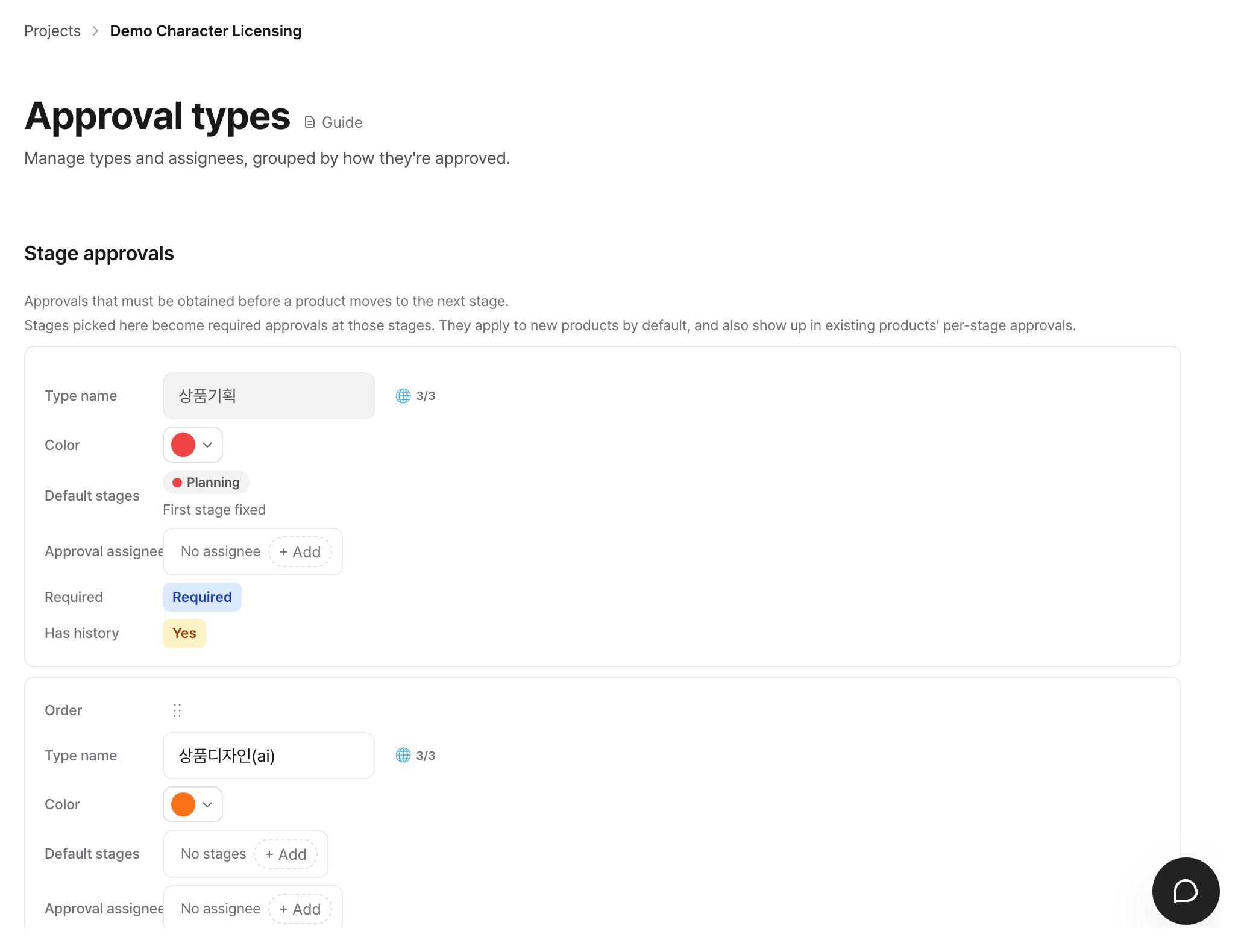
Approval types come in two kinds, and the screen has a section for each.
Stage approval
These are approvals a product must get before it moves to the next stage. Six are included by default: Product plan, Product design (AI), Packaging (AI), Mockup, Product sample, and Finished product.
Ad-hoc approval
These are approvals you request separately when needed, whatever the stage. Four are included by default: Concept approval, Promotional material, Overseas manufacturing, and Import permit. They do not block a product from moving between stages. You can't add new ad-hoc approval types. You can only change the name and default sign-off chain of these four, because there is no screen to request a newly created type.
The default sign-off chain of Concept approval applies to approval requests for a concept (the Concepts project menu). If you set people in order, they must approve in that order before the concept is approved. If it is empty, nobody can approve a concept approval request until an assignee is assigned to that request.
Settings per type
The assignees in a type's Default sign-off chain handle the request in order. If you set only one person, that person approves. You can select only people who have the matching approval permission. If the chain is empty, the field shows Not assigned, and nobody can approve requests of that type until an assignee is assigned. A changed default chain also applies right away to requests no one has reviewed yet. Requests already under review don't change. On a request without a chain, Set sign-off chain opens this setting. Without a chain, the request does not fall back to the workspace owner or a company administrator. Required approvals without a sign-off chain appear in the to-dos of the workspace admin and project administrator, one line per project.
| Item | Description |
|---|---|
| Type name | The name the Partner sees on the request screen |
| Default sign-off chain | Reviewers in order, when approvals must go in sequence. Only assignees with the matching approval permission can be selected |
| Default stages | The stages where this type becomes a required approval. Explained in section 3 |
| Color | Tells types apart in the list |
Changes to the name, default stages, default sign-off chain, and color, and deletions, take effect only when you click Save.
To use the same sign-off chain for multiple stage approvals, choose assignees and set their order in Set stage approval sign-off chains in bulk, then click Apply to all stage approvals. Each type's existing chain is replaced by the selected assignees in that order. Edit only types that need exceptions, then click Save. Ad-hoc approval chains are unchanged.
To use the same sign-off chain for multiple ad-hoc approvals, choose assignees and set their order in Set ad-hoc approval sign-off chains in bulk, then click Apply to all ad-hoc approvals. This replaces only the existing chains for ad-hoc approval types. Stage approval chains are unchanged. Edit exception types individually, then click Save to apply your changes.
Each bulk setting lists only assignees whose business roles qualify them for every type in that section. If there are no shared assignees, the reason is shown. In that case, assign people by type or grant the required approval permission in Roles and assignees.
If another user changes the approval type settings after you open the screen, saving is stopped. Review your entries, refresh to load the latest settings, and edit again. Saving is also stopped if a selected assignee loses permission to approve a type while you are editing. In that case, select assignees again and click Save. In both cases, your changes are not saved.
To use the same sign-off chain for new projects, click Approval type template settings. Only workspace admins can see this link. It opens the approval type template list in workspace settings. The chain saved in a template applies to projects created from that template. Existing projects are not affected.
3. Approvals per stage
You can set approvals per stage in two places, and they apply to different scopes.
For the whole project: Default stages of an approval type
On the approval types screen, choose the Default stages of each type. At the stages you choose, that type becomes a required approval.
- It applies to new products automatically. When a product is registered, the required approvals set at that moment are created as that product's approval items, one by one.
- It also applies to the approvals per stage of existing products. If you take a stage off, only items that haven't been requested yet disappear. Requested items stay, because they are review history.
For example, if you set the Default stages of Product design (AI) to Design draft, every product in this project needs the Product design (AI) approval at the Design draft stage before it moves on.
Adding or removing approval items per product: Approvals per stage in the product details
In the product details, you can add or remove approval items for that product only. Use this for a product that needs to differ from the project defaults. For example, remove Packaging (AI) from a product with no packaging, or add one more item only to a product that needs an extra review. An assignee with Product approval permission edits these. A Partner can only view the items of their own products.
An item that has an approval request linked to it can't be removed, even after the approval is done. Items whose request was rejected or cancelled are exempt.
Product plan can't be removed either. This rule is fixed so that no product moves forward without its concept being approved. The approval types screen also marks it First stage fixed. The requirement applies to the first stage of the Start grouping. If you reorder stages and the starting stage changes, the Product plan approval moves to the new starting stage. A confirmation window shows what changes before you save.
Setting approval due dates
Each stage approval item can have its own due date. In the Launch and approval schedule section of the product details, open Set approval due dates and enter the dates. Assignees are notified when a due date is close or has passed. For the exact timing and recipients, see Messages and Notifications.
Setting a due date needs a different permission from adding or removing items in this section (Product approval). Edit products and move stages assignees edit due dates, and saving a date does not create or remove an item. If you clear a date, that item has no due date and no notification is sent for it.
4. How products move
To the next stage
A product can move only when all required approvals of the current stage are done. If even one remains, the next stage appears disabled in the stage list with Current-stage approval needed. Two decisions satisfy the condition: Approved and Conditionally approved. Revision requests and rejections do not.
Once the approvals are done, the approval area shows Every approval this stage needs is complete., and you can send the product to the next stage from that screen. It does not move on its own. An assignee has to move it.
Skipping intermediate stages is allowed. The approval requirements of a skipped stage don't disappear. They remain as earlier-stage approvals, and you request and review them at the current stage without moving the product back.
To an earlier stage
Always allowed. Approvals don't matter.
To a Done stage
To move to a Done stage, all required approvals of every earlier stage must be done. This applies even when intermediate stages are skipped.
The same rule applies to an assignee with Product approval permission. They can move to other stages while current-stage approvals remain, but a move to a Done stage needs all earlier approvals done. If an approval isn't needed for this product, remove it in Approvals per stage.
An assignee with Edit products and move stages permission can edit a product and move its stage, but the approval condition applies to them just as it does to a Partner. Edit products and move stages and Product approval are separate permissions. Having Edit products and move stages alone does not let someone review requests or change a product's approval items per stage.
To On hold
It is outside the sequence, so a product can enter or leave it at any time. Approvals left on an On hold stage are not counted in the Done check, and they don't pile up as earlier-stage approvals. The stage is also left out of the next-stage default.
5. Tasks by role
IP Provider
The IP Provider side configures and reviews according to business roles. Being on the IP Provider side does not grant any of the permissions below.
- A workspace admin defines roles and permissions in Workspace Business roles, then confirms Project assignees in Roles and assignees.
- A Project operations settings assignee modifies the stages in Project → Product stages. The same permission also lets them set that Project's Roles and assignees.
- The same assignee sets the types and Default stages in Project → Approval types, and sets each type's Default sign-off chain in order.
- The assignee on the sign-off chain reviews the Partner's request and chooses Approved, Conditionally approved, Revision needed, or Rejected.
- A Product approval assignee adds or removes items for a specific product in its Approvals per stage.
Partner
The Partner is the side that carries the product forward.
- Register products. They start at the first stage of the Start grouping (Planning in the default setup).
- In the approval area of the product details, check the approvals this stage needs and request them.
- When all approvals are done, move the product to the next stage.
- If you receive a revision request or a rejection, read the reason and submit again.
6. Troubleshooting
The next stage is disabled and I don't know why. The current stage has required approvals that aren't done. Hover over the disabled item to see the reason. The approval area shows which approvals remain.
Only the Done stage doesn't work. An earlier stage has approvals that aren't done. You can skip intermediate stages, but a Done stage needs all earlier approvals done. If those approvals aren't needed, remove them in Approvals per stage.
I cannot remove an approval item. There are two cases. An item with an approval request linked to it can't be removed even after the approval is done, because the review history must stay. Items whose request was rejected or cancelled are exempt. And if only one required approval is left on that stage, it can't be removed, because at least one must remain. In that case, add another approval first, or first remove that stage from the Default stages of the approval type.
I cannot delete an approval type. It is a default type, or it is currently used as an approval condition of a stage. In the second case, remove it from Default stages first.
I opened Approvals per stage, but there are no types to choose from. Create approval types first in Project → Approval types, then assign them to stages.
What happens if I don't create any stage approval types at all? Products can move between stages with no required approval. The people who can actually move them are Partner project members and assignees with Product approval or Edit products and move stages permission. The approval types screen says so: No stage approval types. Products move freely between stages.
Related features
- Apply for approval and review: Application, submission, review, re-submission, multi-step approval
- Register Products and advance stages: Stage moves, assigning assignees, switching views, and the Launch and approval schedule section
- Messages and Notifications: Timing and recipients of due date reminders
- Upload Concepts and get Approved: When Concept approval is a prerequisite for Product progress
- Request and issue Label issuances: Stages that open label requests and request eligibility