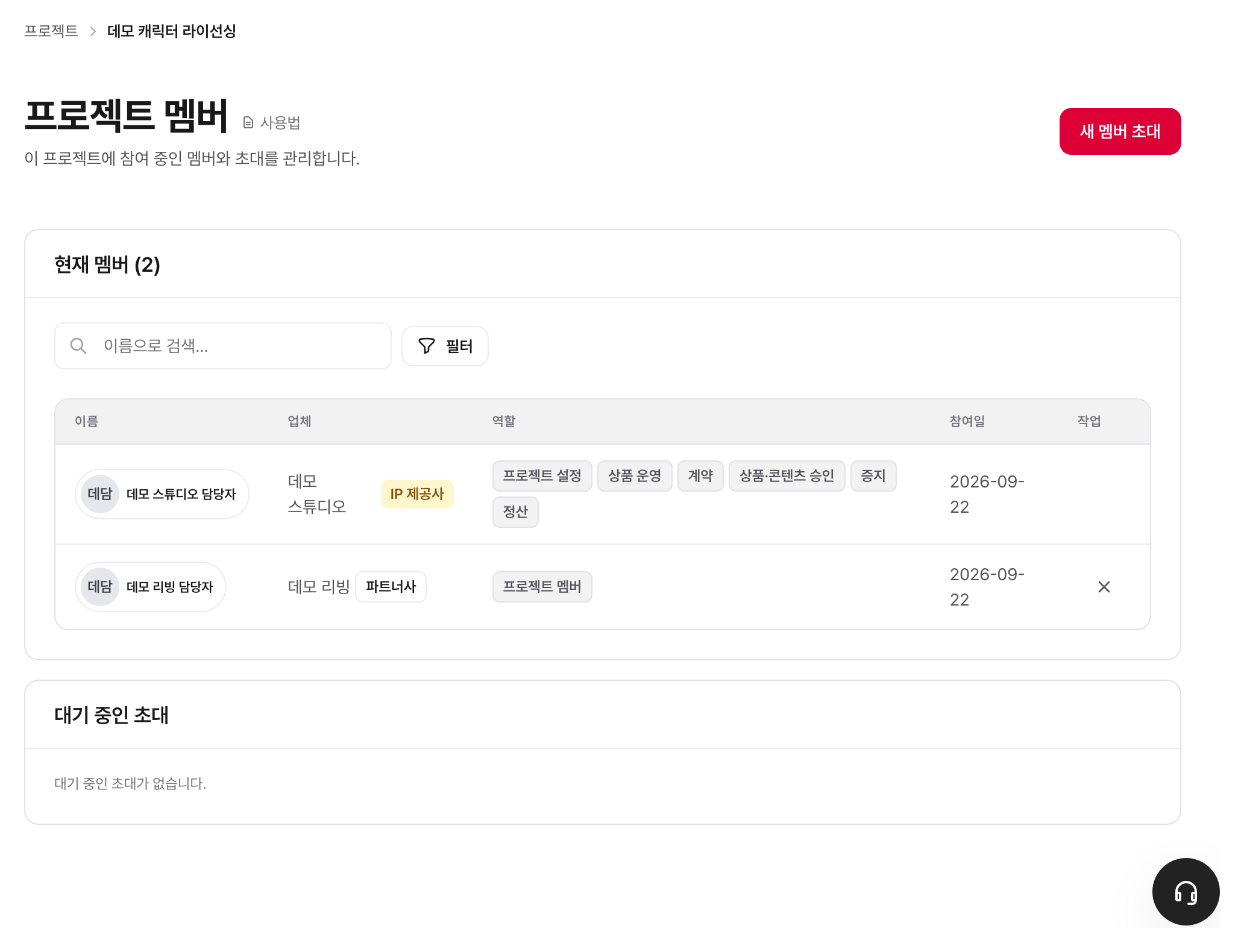
Invite members and assign roles

Manage the people participating in a Project. Any Project member can send an invitation email. An IP Provider manager approves the join request. Project business roles are set separately in Business roles and Roles and assignees. Partners receive invitations or join directly from the Projects list.


Who uses it

Who Key actions Screen entry path
Partner member Join/leave from the Projects list, invite people from their own company Projects list β†’ Join / Project β†’ Members
Partner manager Above + add/remove people from their own company to/from the project, assign owners for their company's Products, change the grade of people in their own company Project β†’ Members / Product detail
IP Provider manager Send invitations, approve, reject, cancel, add or remove members, change grades; manage business roles and default assignees; save Project assignees Project β†’ Members / Business roles / Project β†’ Roles and assignees
Project administrator (holds Project operations settings permission) Save assignees for their own Project Project β†’ Roles and assignees

Core concepts

Project visibility and access scope

The scope for viewing a project in the list differs from the scope for accessing its details.

  • List (Awareness): If your affiliated company is participating in the project, it is visible in the list. You can check the project name even if you are not yet participating.
  • Details/Entry (Access): You can view the details only when you are registered as a member of that project.

IP Provider side can view all projects in the workspace in both the list and details. Partner side can see only the projects their company participates in on the list, and can enter the details only when directly participating or assigned as a member. For projects where you are not yet a member, the name appears in the list with a padlock icon instead of a link. Even if you directly enter the URL, you are redirected back to the list.

The IP Provider side can view projects it hasn't joined, but you can be given a business role in a project only after joining it. Projects you haven't joined don't appear in Your projects on the home screen, and assigned work such as approvals, contracts, and labels, along with its notifications, doesn't come to you. Mentions still notify you. Expired projects, whose contracts have all ended, also stay out of Your projects on the home screen; you can find them in the project list. Click Join in the notice on the project overview to join right away.

Grade and business role on the Project members screen

The Project Members screen shows a Grade column and a Business role column separately.

  • Grade: The qualification for placing people within a company. An admin adds people from their own company to projects or removes them, and sets the assignees and grades for their company's Products. When a company joins a project, its admins automatically become members of that project. A member joins the projects they are assigned to. An IP Provider admin is also a workspace admin.
  • Business role: The seat that handles work such as Contracts, approvals, Labels, and finance. Only the IP Provider side receives it. Partner rows are empty.

Grade and business role do not affect each other. An admin without a business role cannot handle work such as Contracts and approvals, and a person lowered to member keeps the business roles they hold.

The Business role column shows the following.

Display Target Meaning
Business role names IP Provider side Roles currently confirmed for that Project. If one person holds multiple roles, all role badges appear. Default roles are shown by their short names. A role you renamed is shown with the name you gave it.
Role not assigned IP Provider side The person participates in the Project but has no business role and no Contract, approval, Label, or finance permission.

The same short names appear on Project cards on Home and in Your roles at the top of the Project Overview. Full role names are shown on the Business roles and Roles and assignees screens.

IP Provider business roles can be changed only in Project β†’ Roles and assignees. Changing a grade does not grant approval permission. On the Partner side, Project assignment, not the grade, determines whether someone can submit and progress work.

Default assignees set in Workspace Business roles are automatically assigned to the role when a new Project is created. Assignees on Projects that already exist do not change; a workspace admin or that Project's project administrator must select assignees in Roles and assignees and click Save before permissions take effect. Without a role, Workspace owners and company administrators cannot perform this work either.

Business roles appears in the Workspace left menu only for workspace admins (the owner and IP Provider managers). Workspace admins can manage role names, permissions, and default assignees for new Projects there, but admin access does not itself grant Contract, approval, or Label permissions. Project members may read Roles and assignees, but changing and saving assignees is limited to workspace admins and people who hold a role with Project operations settings permission in that Project (the default roles Project administrator and Project settings). When this manual says "project administrator", it means these people. Only workspace admins change role names and permissions.

Find members

Use the search box and Filter above the members table to narrow down the members shown.

  • Search box: enter part of a name or email address.
  • Filter: select values under Company and Business role, then click Apply. Only the companies and business roles of current members are listed. Partner members have no business role, so they don't appear in Business role filter results.
  • Inactive members are hidden from the table by default. An inactive member is someone who deactivated their account (left the service) or left the workspace. To see them, choose Include inactive members under Show in Filter. They appear with (inactive) next to their name. This option appears only when there are inactive members.
  • Applied conditions appear as chips below the search box. Click Γ— on a chip to remove that condition, or click Reset to clear all conditions.

When conditions are applied, the number of results appears above the table. The number next to the title is always the number of Project members, not counting inactive members, regardless of conditions.

The Members screen in the Workspace left menu has the same search box and Filter. Its filter options are Affiliation and Grade, and Show also appears when there are inactive members. If you choose Include inactive members, people who left the workspace appear under their last affiliation. A row for someone who left is a record, so you cannot change their grade or remove them.

Someone who was removed only from a Project is not inactive. They still work in the workspace, so (inactive) is not added to their past messages or approval records in that Project.

Two Invitation Paths

There are two invitation flows in the workspace:

  • Member invitation: An invitation to add a new person to the Workspace. Manage it from Members in the left menu. This menu is visible only to the IP Provider side, and only IP Provider managers can send these invitations. You can also select a Project for the person to join. After they accept, select and save a business role separately in the Project's Roles and assignees.
  • Project invitation: A flow to invite people who have not yet joined the workspace to a specific project. This is the main flow covered in this document, and anyone who is a member of that project can send it.

In project invitations, only IP Provider admins can select the target company. For invitations sent by anyone else, the target company is fixed to their own company, and only the company name is displayed on the screen.


How to use

Partner's perspective

Self-joining from the project list

Projects in which your company is participating are visible in the project list. You cannot view the details of projects you have not joined yet.

  1. Select Projects from the left menu.
  2. Click the Join button on the right of the row of the project you want to participate in in the list.
  3. Once participation is complete, you will be redirected to the project detail screen.

Partners are not assigned IP Provider business roles, so the Business role column is empty after they join.

When receiving an invitation email

When a project member sends an invitation, an invitation link is sent via email.

  1. Click the invitation link in the email.
  2. Log in or create an account. (You must sign up with the same email address as the invitation email.)
  3. Check the invitation details and click Accept and join.

When you sign up without an invitation link, you must verify your email from the verification message before you can use Workspaces or accept invitations. If you open a still-valid invitation link and sign up with the same email address that was invited, receiving that link counts as proof that you own the address, so no separate verification email is sent. An expired invitation or a different signup email does not qualify for this exception; standard email verification is required.

Accepting an invitation sent by an IP Provider administrator joins you immediately. For an invitation sent by anyone else, accepting it puts you in the Awaiting approval state, and joining is finalized only after approval by an IP Provider administrator.

Declining an invitation

  1. Click the invitation link in the email.
  2. After logging in, click the Decline button.

Declined invitations cannot be undone. To receive an invitation again, ask the sender to reinvite you.

Inviting members of your own company

  1. Open the project and go to Members.
  2. Click the Invite a member button at the top right.
  3. Enter the email address of the person to invite.
  4. Select the invitation email language, write a message if necessary, and click Send invitation.

The target company for the invitation is fixed to your affiliated company. When the Partner accepts the invitation, an approval-needed notification is sent to all members on the IP Provider side.

Leaving a project

Clicking the Leave button on the right of the title line on the project overview screen removes you from that project. This button appears only for members on the Partner side. After leaving, you cannot view the detailed contents and will only remain in the list. To re-enter, click Join in the list.


IP Provider Administrator Perspective

Project members screen: participating companies and people, and pending invitations are on a single screen

Managing Participating Companies

Open the fixed Participating companies menu in the Project to view company names, roles (IP Provider or Partner), company managers, and participation status. IP Provider administrators can view every company in the Workspace. Select one or more companies that are not yet participating, then click Add to add them to the Project. To add a new company, click Register company to open the registration form. After registration, you return with the previous selections and the new company still selected; click Add to confirm.

Regular Project users can view only companies that already participate. To remove a participating company, click Remove in its row and confirm. Canceling keeps the company in the Project. Companies with an active or draft contract cannot be removed. Click the company's Remove button to see why.

Inviting Non-Workspace Members (Project Invitation)

  1. Open the project and go to Members.
  2. Click the Invite a member button in the upper right.
  3. Enter the email address of the person to invite.
  4. Select the company to invite in the Participating company field.
    • If the company is not yet registered, click the Register a new company button to go to the company registration screen. Once registration is complete, you will return to this screen, and the email address you were entering and the registered company will remain filled in. Enter the company name and type, registration country or region, business type, address, and manager's email, then click Register company and invite. Complete any additional information marked as required; other optional details can be added later. Selecting an address country makes address search available where configured (Korea: road-name address search; Japan: Japan Post). Selecting a result fills in the postal code, region, city, and base address, while you enter the detailed address yourself. If search is unsupported or not configured for the selected country, or a search fails, enter the address fields manually.
  5. Select the invitation email language, write a message if necessary, and click Send invitation.

An invitation link will be sent via email. An invitation sent by an administrator is finalized as soon as the recipient accepts it, so it does not remain in the pending list. An invitation sent by someone other than an administrator appears in the "Pending invitations" list at the bottom of the members screen once the recipient accepts it.

Approving or Rejecting Pending Invitations

When the recipient accepts an invitation sent by someone other than an administrator, it appears in the Awaiting approval state. An administrator reviews it and processes approval or rejection.

  1. Go to Project β†’ Members.
  2. Check the Pending invitations list below.
  3. Click Approve or Reject on the invitation in the Awaiting approval state.

Upon approval, the recipient joins the workspace, their company is registered as a participating project company, and they join as a project member.

Cancelling Pending Invitations

Invitations that the recipient has not yet accepted (Pending state) can be cancelled.

  1. Check the Pending invitations list at the bottom of the members screen.
  2. Click the Cancel invitation button for the relevant invitation.
  3. Confirm the cancellation in the confirmation dialog.

Cancellation is only possible in the pending state. Invitations that have moved to Awaiting approval are handled by rejection, not cancellation. The person who sent the invitation can also cancel their own pending invitations.

Directly Adding Existing Workspace Members

People who have already joined the workspace can be added directly as project members without an invitation.

  1. Click the Invite a member button in Project β†’ Members.
  2. Search and select names by company in the Add an existing member to the project area at the top of the panel.
  3. Click the Add button.

People added this way enter as Project members. To give an IP Provider member Contract, approval, Label, or finance work, a workspace admin or project administrator then selects that person for the relevant role in Project β†’ Roles and assignees and clicks Save.

Partner administrators can also use this area, but only people from their own company will appear as candidates. If the company has no existing Workspace members, this area is not displayed.

Changing business roles (IP Provider side)

When a business assignee changes, use Roles and assignees, not the members table. The Workspace owner, an IP Provider manager, or that Project's project administrator can make this change.

  1. Make sure the IP Provider person is a member of this Project. If not, add them from Project β†’ Members.
  2. Go to Project β†’ Roles and assignees.
  3. Select the assignees for each role. The same person may be selected for multiple roles.
  4. Click Save.

You see a warning only when the change would leave an in-progress approval without an assignee. Open an affected request to assign someone else. Canceling the warning keeps your selected assignees.

Manage role names, permission combinations, and the default assignees automatically assigned for new Projects from Business roles in the Workspace left menu. Changing a default assignee does not automatically change an existing Project; save the assignees separately in each Project.

Changing a grade

You can change a grade on three screens: the Project Members screen, the Workspace Members screen, and Members on the company detail page. The rules are the same on all three.

  1. In the person's row, choose admin or member in the Grade field.
  2. Confirm in the dialog.
  • An IP Provider admin can change the grade of everyone in the workspace except the owner.
  • A Partner admin can change the grade of people in their own company only.
  • A Partner company must keep at least one admin. The only admin cannot be lowered to member, so the row shows a grade badge instead of the field. Make someone else an admin first.
  • If a Partner admin leaves the company and no admin remains, an IP Provider admin makes one of the remaining people an admin. A Partner with no admin appears under Needs attention on the IP Provider admin's To-do screen, and selecting it opens that company's member list.
  • The first person to join a Partner with no admin becomes its admin, whichever way they join.
  • A person whose grade you cannot change shows only the grade badge, with no field.

Removing Members

  1. Go to Project β†’ Members.
  2. Click the Remove button (Γ—) on the right side of the member row to be removed.
  3. Confirm in the confirmation dialog.

Removing a person revokes their Project participation and all confirmed business-role assignments for that Project. The remove button does not appear on your own row.

Partner administrators can only remove members from their own company, and cannot remove members whose roles were directly assigned by the IP Provider administrator.


Status and rules

Project Invitation Status Flow

Status Description
Pending Invitation sent, recipient has not accepted
Awaiting approval Recipient accepted, awaiting administrator review
Approved Administrator approval complete, recipient joined as a member
Rejected Rejected by administrator
Cancelled Cancelled by sender or administrator
Expired Invitation validity period (7 days) exceeded

Permission Summary

Action IP Provider Admin Partner Admin Other project members
Send project invitation Allowed (select company) Allowed (fixed to own company) Allowed (fixed to own company)
View invitation list Allowed (all) Allowed (own company invitations only) Allowed (own company invitations only)
Approve/Reject invitation Allowed Not allowed Not allowed
Cancel invitation Allowed Sent by self only Sent by self only
Add member Allowed Allowed (own company people only) Not allowed
Change business role assignees Allowed Not allowed Project administrators of that Project only
Change grade Allowed (except the owner) Allowed (own company people only) Not allowed
Remove member Allowed Allowed (own company people only, excluding members assigned by an administrator) Not allowed
Join from list N/A Allowed Allowed
Leave N/A Allowed (Partner side only) Allowed (Partner side only)
Invite workspace member Allowed Not allowed Not allowed

Any member of the project can send invitations and view the invitation list, whatever their grade or company type. An IP Provider administrator still decides who joins.

Who is automatically included when a company joins a project

When a company is added to a project, its members are automatically assigned as project members. The scope of who is automatically included differs depending on the side.

Side Automatically included people Business role shown on the Members screen
IP Provider All active members Role not assigned until a business role is confirmed
Partner Only people whose grade is admin Empty

Partner people whose grade is member are not automatically included. Since this is for dividing responsibilities, you designate the project together when inviting or add them from the members screen. Partner members also still have the way to directly join from the project list.

Changing a grade does not create or change Project business roles. Always confirm IP Provider business assignees in Roles and assignees. On the Partner side, promotion to admin adds the person to participating Projects automatically; lowering to member does not automatically revoke existing Project participation.


Setting someone from another workspace as an approver

Sometimes, headquarters and a branch each use their own workspace, but you need to include a headquarters representative in the branch workspace's sign-off chain. This is possible. Invite that person as belonging to the IP Provider in the branch workspace.

One person can belong to multiple workspaces, and their affiliation and role are separate for each workspace. Their affiliation in the headquarters workspace remains unchanged.

Approval rights come from confirmed business-role assignments in Roles and assignees. Workspace owners and company administrators do not receive approval rights automatically.

What you want to grant How
Approve in one Project Invite them as an IP Provider member in this Workspace, then assign them to the required approval role in that Project's Roles and assignees and click Save
Approve in multiple Projects Assign them to a business role and click Save in each Project. Workspace administrator access alone does not grant approval permission

The most common blocker is adding someone to the Project but not saving their business-role assignment in Roles and assignees. First add them as a Project member, then select the required role and click Save so that they appear as an eligible approval assignee.

If one person handles several approval responsibilities, assign them to multiple roles.

There are two things to note:

  • The company to be invited must be the IP Provider in the branch workspace. A headquarters company brought into the branch workspace as a Partner cannot be added to the sign-off chain.
  • On the branch workspace screen, that person's company appears as the branch's IP Provider. To show that the person comes from headquarters, use an Affiliation label, described below.

Affiliation label

You can attach a short label such as "Headquarters" to an IP Provider member you want to set apart, for example a headquarters employee.

  1. In the workspace's left menu, go to Members.
  2. In that person's row, type the label in the field under Affiliation (up to 40 characters).
  3. The label saves when you leave the field. Clear the field and leave it to remove the label.
  • The field is visible only to IP Provider admins (including the workspace owner), and only on rows of IP Provider members.
  • The label is for display only. Permissions, business roles, and sign-off chains don't change.
  • The label appears on the workspace Members screen, on the project Members screen, and on the line under a message author's name. Where the company name is also shown, it appears as "Company name Β· Headquarters". Only IP Provider side people and the workspace owner can see it. Partners can't.
  • A message someone else has just posted doesn't show the label right away. It appears after you refresh the page.

Frequently encountered situations / Cautions

If the invitation email does not arrive
Check your spam folder. Project invitations are valid for 7 days, and workspace member invitations are valid for 14 days. Expired invitations require requesting a re-invitation.

If signed up with a different email than the invitation email
The invitation email and login email must match to accept. If the emails are different, a guide message is displayed on the invitation acceptance screen.

If the join button is not visible in the list
This occurs when your affiliated company is not participating in the project, or you are already a member. Contact the IP Provider administrator for participating company settings.

If approval takes a long time
Invitations sent by someone other than the IP Provider administrator require approval from the IP Provider administrator. Ask the IP Provider administrator for confirmation. Invitations sent directly by the IP Provider administrator join as soon as the invitee accepts.

A business role was selected, but the permission is still missing

Default assignees are automatically assigned only on projects you newly create. For a project that already existed, make sure you selected the assignee in that Project's Roles and assignees and clicked Save. A person cannot be assigned if they are not an active member of that Project.

Company shown when you approve a participation request from a connected workspace

In Participation requests received on the Connected workspaces screen, click Approve participation. You must choose the Company yourself. Nothing is selected in advance. If the requester works at headquarters or the same group, choose this workspace's IP Provider. If you choose a Partner, the person joins as a Partner member.

To import the company the requester belongs to in their original workspace, choose Import the requester's company at the top of the Company list. The approval window shows the company name, registration country, region, business registration number, and address. When you approve, only these values are copied into this workspace as a new company. Contact details such as the representative, phone number, and email are not imported.

When you import a company, you must also choose the Company type in this workspace. Nothing is selected in advance there either. If this workspace already has an IP Provider, you can't choose IP Provider.

  • If a company with the same business registration number already exists in this workspace, no new company is created and the person joins that company as a member. If the company has a registration country or region, those must match too. A company without a business registration number is not compared, and a new company is created.
  • The imported company keeps the values from the moment you approve. Later changes to the company in the original workspace don't change the company in this workspace.
  • To skip the import, choose a company already registered in this workspace from the Company list.
  • If you disconnect the workspaces, the imported company and the affiliation of members who joined through it stay as they are.

When Partner participation is terminated
Removing a company from project participation revokes its members' project memberships as well, and unprocessed invitations are automatically cancelled. However, participation cannot be removed if the company's draft or active Contracts remain.


Related features