Registering Products and Advancing Stages
Check which stage a product is in, from concept to launch. Set up stages, assign assignees, and move the product to the next stage once the required approvals are done.
Who uses this
| Role | Main actions | Entry path |
|---|---|---|
| Partner (Product registration & progress) | Register products, move stages, assign assignees | Project → Products |
| IP Provider Product approval assignee | Approve Products and move stages without the current-stage approval gate | Project → Products |
| IP Provider Product operations assignee | Edit Products and move stages while following approval gates | Project → Products |
| IP Provider Project settings assignee | Add, edit, or delete stages | Project → Product stages |
Key concepts
Stages
A stage shows where a product currently is. Each stage has a Stage name (you can change it) and a Stage grouping (fixed).
Four stage groupings
| Stage grouping | Meaning | Impact |
|---|---|---|
| Start | Not started yet | New products start at a stage in this grouping |
| In progress | Work in progress | None |
| Done | Launched / completed | When a product reaches a stage in this grouping, its status changes to Confirmed |
| On hold (cancelled) | Stopped / cancelled | It is outside the sequence, so a product can enter or leave it at any time. It is left out of the next-stage default and the earlier-stage approval count |
You can rename stages freely, but the starting stage of new products and the approval conditions follow the stage grouping. Renaming a stage does not change how it works. Each of Start, In progress, and Done needs at least one stage, so the last remaining stage of a grouping can't be deleted or moved to another grouping.
Label requests open regardless of the stage grouping. They open once all required approvals of the stages checked as Required for label requests in Edit product stages are approved. A new project starts with every stage before the Done stage checked. The conditions are summarized in Apply for and issue labels.
Default stage list
When a workspace is created, the following default stages are set up automatically. You can edit, add, or delete them.
| Stage name | Stage grouping |
|---|---|
| Planning | Start |
| Design draft | In progress |
| Sample production | In progress |
| Mass production | In progress |
| Launched | Done |
| On hold | On hold |
Stages with required approvals
If you set Required approvals for a stage, it becomes a "stage with required approvals." All of its required approvals must be done before the product can move to the next stage. If any remain, the next stage appears disabled in the stage list, with the reason Current-stage approval needed.
- Two decisions satisfy the condition: Approved and Conditionally approved. Revision requests and rejections do not.
- Moving back to an earlier stage is always allowed, with no required approvals.
- Once all required approvals are done, choose the next stage in the product details. The system does not move the product for you.
- When it is time to move, the product appears in the To-do list of people who can move it, marked Pick the next stage.
- Assignees with Product approval permission can move a product without this condition. The Done stage is the one exception. Assignees with Edit products and move stages permission can move stages, but the approval condition still applies.
When you register a product, the required approvals set on each stage at that time are created as approval items for that product, one by one. If you add a required approval later, items are created for existing products too. If you remove one, only items that haven't been requested yet disappear. Requested items stay, because they are review history.
Product status
You can't change the product status directly. It follows the stage the product is in.
| Current status | Trigger condition |
|---|---|
| Draft | Has not reached a Done stage |
| Confirmed | Has reached a Done stage |
There are only these two statuses. To pause a product, move it to the On hold stage.
A confirmed product can't be deleted. If you move it back to a stage outside Done, the status returns to Draft.
"Current status" chips in the list
This is different from the Product status (Draft, Confirmed) right above. The Current status column in the product list and on Board cards shows who the product is waiting for.
| Chip | Meaning |
|---|---|
| Request needed | The current stage has a required approval that hasn't been requested yet. It is the Partner's turn to request it |
| Waiting on the Partner to request | The same situation when viewed by the IP Provider |
| IP Provider reviewing | A request has been submitted and is waiting for a decision |
| Approval needed | The same situation, but you are the approver |
| Resubmission needed | A revision was requested. It is the Partner's turn to fix it and submit again |
| Partner revising | The same situation when viewed by the IP Provider |
| Pick the next stage | All required approvals of the current stage are done. You can move the product to the next stage |
| Nothing waiting | The current stage has no required approvals. You can move the product to the next stage |
| Earlier-stage approvals | A stage the product has already passed still has required approvals that aren't done. The count appears on the chip |
The same product appears with a different chip depending on who is viewing it. A product waiting for approval appears as Approval needed to the approver, and as IP Provider reviewing to the Partner who requested it. This way, each person can see right away what they need to do.
For a product with the earlier-stage approvals chip, you can request the missing approval in the product details. You don't need to move the stage back. Nothing waiting is not shown while this chip is shown.
Assignees
You can assign more than one assignee to a product. Choose assignees from the active project members of the company the product belongs to, and set their roles (Sales, Planning, Production) if needed. Assignees receive stage change notifications.
Due dates
A Product has two kinds of due dates. The Product's own due date is the existing Launch date, and on top of that you can set a separate due date for each stage approval. Both kinds appear together in the Launch and approval schedule section of the Product detail page.
Clearing a due date leaves that item with no due date, so it drops out of the notification targets. Only items with a due date appear as a row in the section list.
Assignees can also view this section, because the people who receive the reminder need to be able to check their own due dates. Only Edit products and move stages assignees can edit it. Creating or removing a stage approval item is a separate permission covered in Configure stages and approvals; saving a due date does not create or remove that item.
A notification is sent when a due date is approaching or has passed. For the exact timing and recipients, see Messages and Notifications.
Product code
When you register a product, a Code is generated automatically. It is unique within the project, and you use it to identify and copy the product on the details screen.
How to use
Partner perspective
Registering a product
- Go to the project and click Products.
- Click Register product.
- The project needs an active contract and at least one approved concept linked to that contract. If it doesn't, a message explains what is missing.
- Select the concept (only approved concepts are listed). The contract is linked automatically from the concept.
- Under Used IPs, search for and select one or more IPs. They are used to find guides and to classify the product. If the contract has IP-specific contract terms for that IP, they are also used to calculate label amounts.
- For a new product, select the Assignees.
- Upload the thumbnail and enter the price, planned quantity, sales channels, and launch date.
- Enter the product name, categories (you can select several), description, images, files, and other details.
- Click Save. The product is placed in the first stage of the Start grouping automatically. Even if you reorder the stages, the starting stage is decided by the grouping.
You can proceed without selecting a used IP. If you leave it blank, the product isn't classified under any IP, and no IP is added automatically.
Partners don't choose the rate. By default, the product uses the contract's IP-specific contract terms that match its used IPs, and if several match, the terms with the highest royalty rate. If none match, the contract's base terms apply. An IP Provider member with the Create and edit contracts permission can change the product's rate in Applied rate on the product edit screen, to a specific IP-specific contract term or Enter manually. You can see the result and where it comes from in Applied rate on the product details.
Select an IP tag on the product details to see that IP's introduction and guides. Partners see only materials shared with projects they can access.
The product details have a Used IP guides section. It lists guide materials under the name of each of the product's used IPs, and also shows Common guides, which don't belong to a specific IP. Select a material name to open it. If there are no guide materials you can see, the section does not appear.
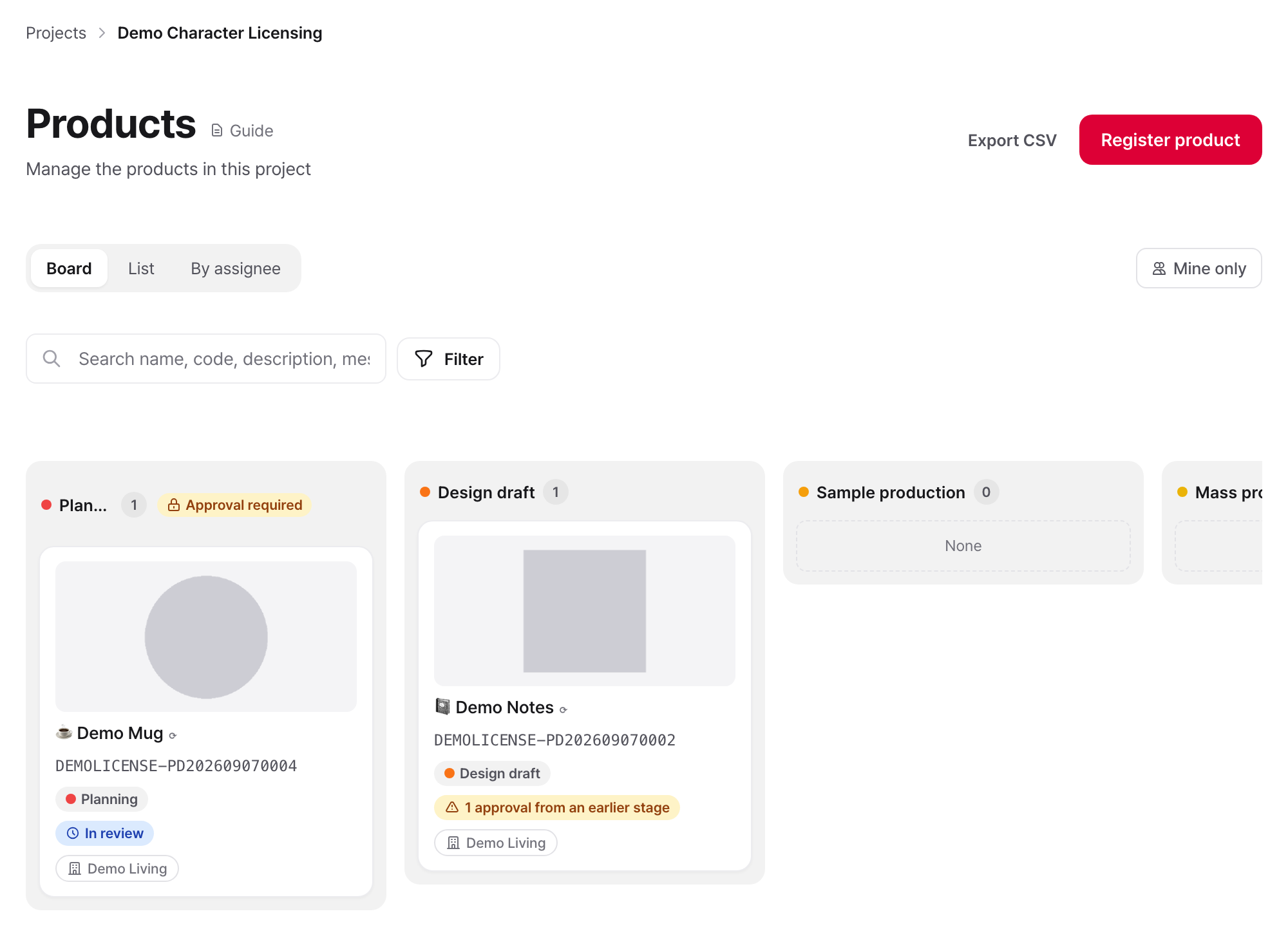
Moving stages
- Check the current stage on the product details page.
- Click the stage chip to open the Move stage list, and choose the stage to move to. A confirmation window opens. If you cancel, the product stays in its original stage.
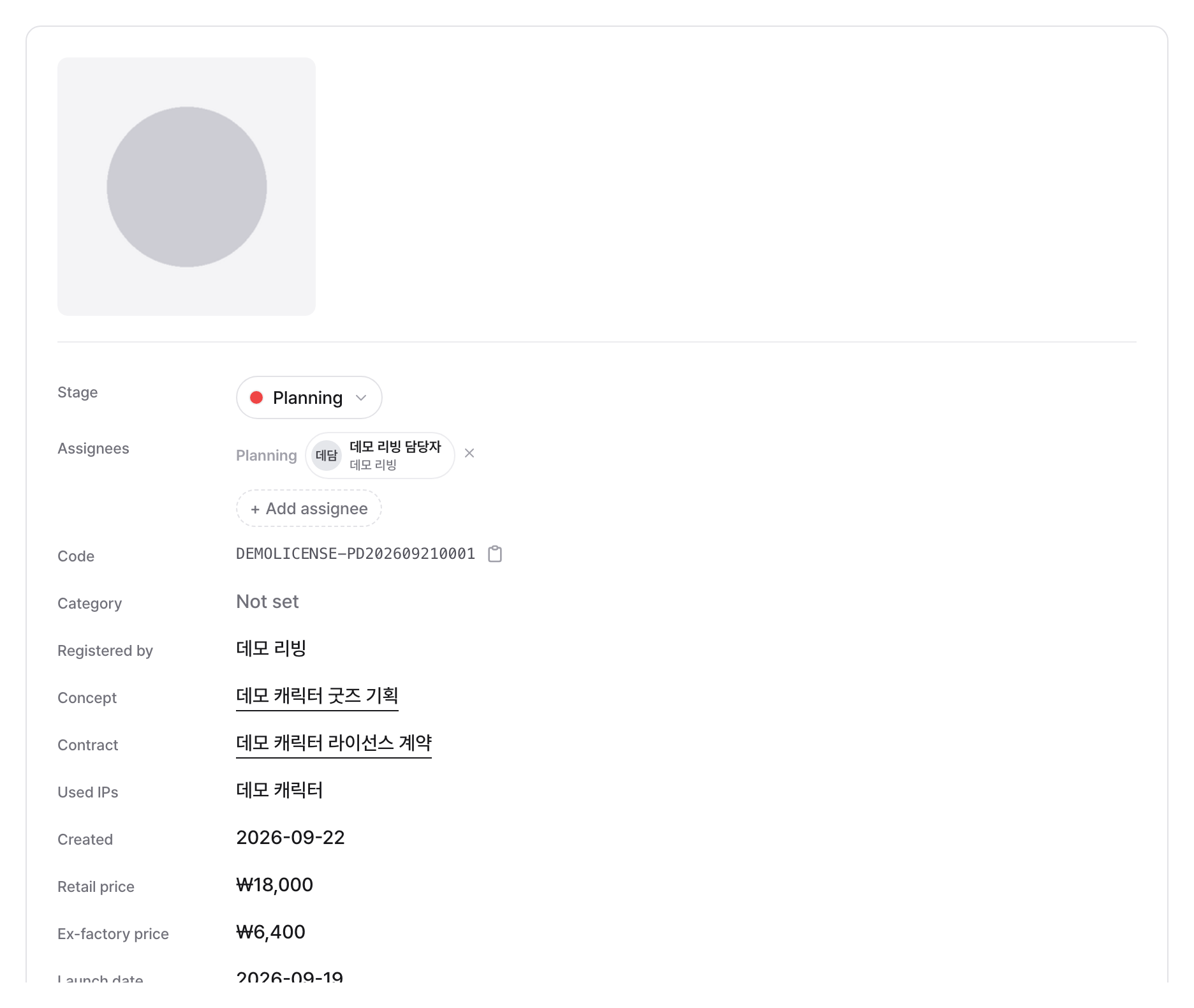
Assigning assignees
- In the properties area of the product details page, click Add assignee (visible only to admins of your own company).
- Select from your company's project members and set a role (Sales, Planning, Production).
- Adding or removing an assignee is reflected on the board card in real time.
Switching between list, board, and assignee views
Use the tabs at the top of the product list to switch between three views.
| View | Display Method |
|---|---|
| List | A table with columns for product name, code, assignees, stage, current status, and created date. Click a header to sort |
| Board | One column per stage. Drag a card to move its stage |
| By assignee | A card gallery grouped by assignee |
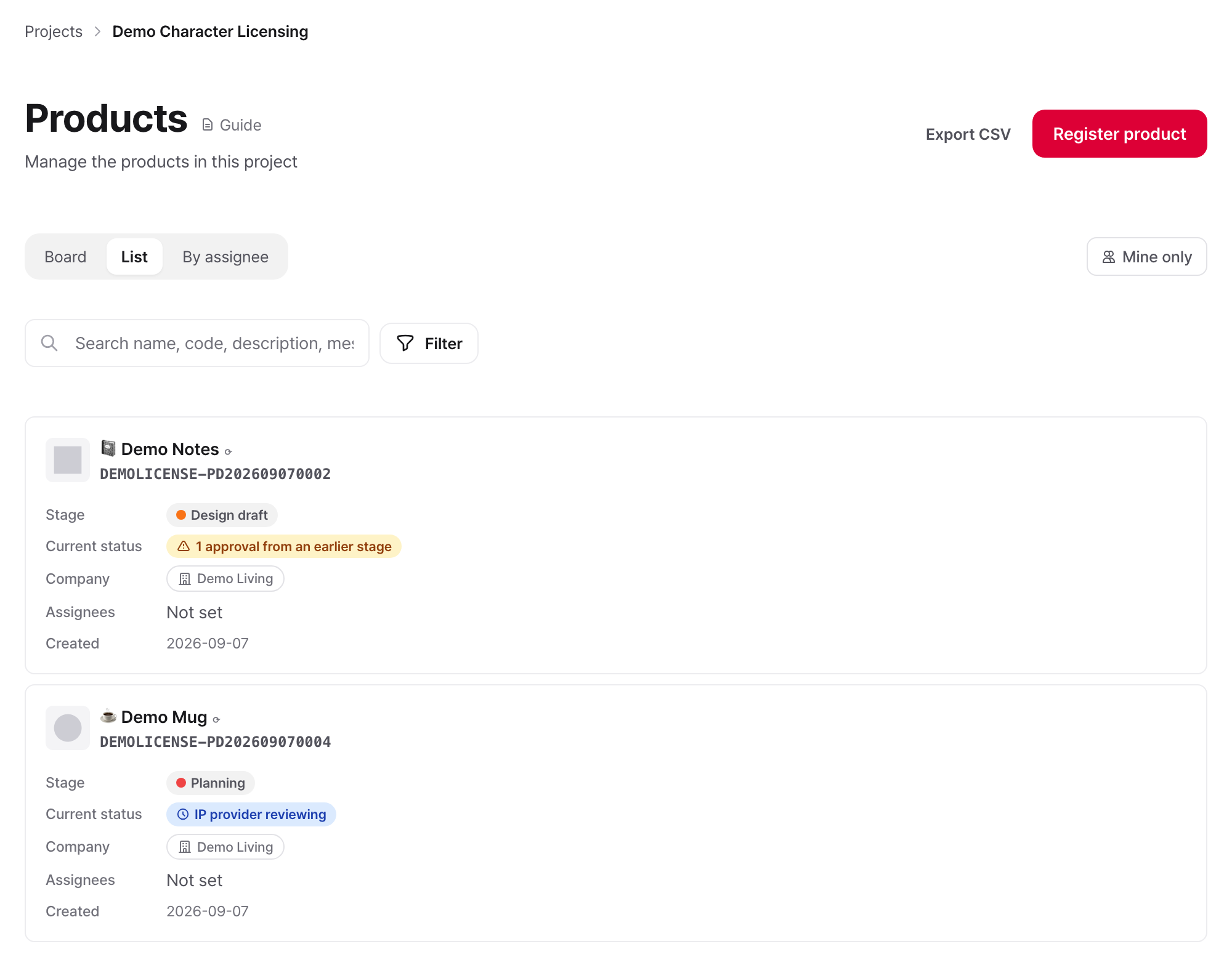
The view you chose last is remembered for each project, even after you search or filter.
Showing only your products
Turn on Mine only next to the view tabs to show only the products you are an assignee of (shown on the Partner side only).
Search and filters
- Search: searches product name, code, description, messages, and assignee name and email together.
- Filters: narrow the list by category, stage, concept, contract, assignee, and created date range.
Messages
The product details show the automatic records left by approvals and stage changes. To write a message or @mention someone, use the details page of an approval request linked to the product.
IP Provider/Operator perspective
Approving a product
- Check the approval area on the product details page.
- If required approvals are set up, click Approve.
- Once all required approvals of the current stage are done, choose the next stage.
- Click the current stage in the product details to open the list of stages you can move to.
- Select the stage and confirm in the confirmation window. A stage you can't move to shows the reason.
Setting approval due dates
- In the Launch and approval schedule section of the product details page, click Set approval due dates (visible only to Edit products and move stages assignees).
- In the window that opens, enter a due date for each stage approval. If the product has no approval items, you only see a note that there is nothing to enter.
- Click Save. If you clear a date, that item has no due date and no notification is sent for it.
The launch date is not entered in this window. It is the existing value you enter when editing the product. The Launch and approval schedule section only shows it next to the approval due dates.
Editing a project's product stages
- In the header of the project's product list page, click Edit product stages (visible only to assignees with Project operations settings permission). Product stages in the left project menu opens the same screen.
- In the stage list:
- Add stage: a row is added at the end of the list. Set its name, stage grouping, color, required approvals, and Required for label requests in that row.
- Edit name, grouping, and color: you can rename a stage at any time. How it works follows the stage grouping, so renaming doesn't change it.
- Change order: drag the handle at the start of a row to move it.
- Delete: click the delete button to mark that row for deletion. The button is disabled for the last row of the Start, In progress, and Done groupings.
- Changes on this screen are applied all at once when you click Save. Deletions are applied when you save too.
- If a stage you are deleting has products, a confirmation window opens when you save. It shows what moves where. Continue with Move and delete. Products move to the stage just before it.
- A stage that still has approval items or stage move history isn't removed completely. It moves down to Archived stages and disappears from the list.
- Your edits apply immediately, and only to the products of this project.
Editing the workspace default template
To change the default stages for the whole workspace:
- Go to Workspace Settings → Product stages tab.
- Add, edit, or delete stages in the default stage list.
- Changes apply only to new projects. Stages of existing projects don't change.
Status and rules
Stage move rules
| Direction | Condition |
|---|---|
| To the next stage | All required approvals of the current stage must be done (or none are required). Skipping intermediate stages is allowed. Product approval assignees move a product without this condition |
| To a Done stage | The required approvals of all earlier stages must be done. The IP Provider is no exception |
| To an earlier stage | No restriction |
| To On hold | It is outside the sequence, so a product can enter or leave it at any time |
The screen shows why a product can't move to a Done stage. If that approval isn't needed for this product, delete the item in Approvals per stage and the product can move. Details: Configure stages and approvals
Permissions summary
| Action | Partner | IP Provider |
|---|---|---|
| Register products | Available | Unavailable |
| Move to the next stage | Available (after the required approvals are done) | Product approval assignees can move regardless of the condition; Edit products and move stages assignees can move once the condition is met |
| Move to an earlier stage | Available | Product approval and Edit products and move stages assignees only |
| Drag on the board | Available | Product approval and Edit products and move stages assignees only |
| Assign or remove assignees | Admins of their own company only | Admins only |
| Product approval | Unavailable | Product approval assignees only |
| Set approval due dates (edit) | Unavailable | Edit products and move stages assignees only |
| Edit project product stages | Unavailable | Available (Project operations settings assignees) |
| Edit workspace templates | Unavailable | Available |
A stage can be moved by a Partner project member for their own company's product, an assignee with Product approval permission, or an assignee with Edit products and move stages permission. Only Product approval assignees can go past the required approval condition. Edit products and move stages assignees must still meet it. Workspace owners and company administrators don't get either permission automatically.
Deleting products
Only products with the status Draft can be deleted. Confirmed products and products with label issuance history can't be deleted.
Checking products in progress on the dashboard
In the Products in progress area of the workspace home (dashboard), you can see the products of every project you participate in.
- Partner: products you are an assignee of
- IP Provider: products you are the approval assignee of
Products from several projects are listed together, most recently updated first. They aren't grouped by stage, because stage names differ between projects.
Design
IP Provider members use this to hand artwork to a project's design workers and to publish the finished deliverables to partners. This is not an approval request that reviews the deliverables. It is a way to assign work.
Who can see it Design in the project's left menu is visible to everyone who can see the project. The IP Provider side and the workspace owner see every request with its status. Partners see only designs in the Published status. Even after publishing, they can't see the request details, references, designer, requester, or request messages. Only the IP Provider side can be @mentioned in a request's messages.
Set up first The people who receive requests are assignees of a business role that has the Design work permission. Of the default business roles, Project administrator and Design have this permission. To send requests only to designers, assign the designers to the Design role. Assignees of the Project administrator role can also receive and handle requests.
- To assign designers automatically on new projects, go to Business roles in the workspace's left menu and choose the designers under Default assignees for new projects for the Design role.
- Default assignees are not added to projects that already exist. For each such project, go to Roles and assignees, choose the designers as assignees of Design, and click Save.
Send a request Any IP Provider side member and the workspace owner can send requests. They don't need to participate in the project.
- Go to the project, then Design, and click New request to open the New design request panel.
- Fill in the fields.
- Request title (required)
- Request details: describe the work, its use, the size, and the file format.
- References: upload images or documents for reference, up to 1 GB per file.
- Designer: if you leave it blank (All design workers), every design worker in this project receives the request. If you choose a person, only that person receives it. Choose from this project's design workers. In a project with no design workers, you must choose a designer from the IP Provider members of this workspace.
- Desired completion date (optional)
- Click Send request. The designer is notified.
Until the request is completed, the requester can change it with Edit on the request page. If it is changed while in progress, the worker is notified.
Accept and complete a request
- The designer clicks Accept request on the request page. The status changes from Requested to In progress, and that day is recorded as Accepted on. If the designer was left blank, the first design worker to click Accept request becomes the designer.
- When the work is done, click Upload deliverables, upload the files, and click Complete. You can't complete a request without deliverables. You can upload image, PDF, AI, PSD, EPS, TIFF, and ZIP files, up to 1 GB per file.
- When the request is completed, the requester is notified.
To show drafts or exchange feedback, use the messages below the request. A completed request can't be moved back to in progress. To change the deliverables, ask again in a message or send a new request.
Publish to partners After a request is completed, the requester or an IP Provider admin reviews the deliverables and publishes them to partners.
- On the request page, click Publish to Partners.
- Click Publish in the confirmation window. The status changes to Published, and partners in this project can see the title and download the deliverables. When you publish, the title is automatically translated into the partners' languages.
- Publishing doesn't send a notification. Click Copy link to copy the design's address, paste it into a product message, and @mention the partner's contact to let them know.
To withdraw it, click Unpublish and click Unpublish again in the confirmation window. From then on, partners can't see the design in the list, and links already sent stop working. Files they already downloaded can't be recalled. A partner who opens the link of a design that isn't published sees This design isn't published.
Where partners see designs Partners see published designs under the project's Design, newest first. Opening a design shows previews of the deliverables (image files only), the file list, Published on, and the IP Provider's name. Each file can be downloaded. To record which design a product used, paste the design link into that product's messages.
To-dos and notifications Requests appear in people's To-do list.
- Designer: requests they have received and requests in progress. A request with no designer set appears for every design worker, and once someone accepts it, it stays only with that person.
- Requester: completed requests that haven't been published yet appear as Ready to publish. A request that was published and then unpublished doesn't appear again.
- When the desired completion date has passed, the overdue date is added after the title and the request moves toward the top of the list.
A notification goes to the designer when a request is sent, to the requester when it is completed, and to the designer when it is cancelled. For a request with no designer set, every design worker is notified. A new request is also sent by email. Completion and cancellation notifications are sent in the app only. Partners never receive design notifications.
Cancel a request The requester or an IP Provider admin can cancel a request that isn't completed with Cancel request. Click Cancel request again in the confirmation window, and the designer is notified. A cancelled request can't be restored.
| Status | Meaning |
|---|---|
| Requested | The request was sent and no one has accepted it yet |
| In progress | The designer accepted the request |
| Completed | The designer uploaded the deliverables, and they haven't been published yet |
| Published | The deliverables were published to partners |
| Cancelled | The requester or an admin cancelled it |
| Action | Who can do it |
|---|---|
| View requests | IP Provider side members, the workspace owner |
| View published designs | Anyone who can see the project, including partners |
| Send a request | IP Provider side members, the workspace owner |
| Edit a request | The requester (before completion) |
| Accept request | The assigned designer. If none is set, any design worker |
| Upload deliverables | The designer |
| Publish to Partners, Unpublish | The requester, IP Provider admins (after completion) |
| Cancel a request | The requester, IP Provider admins (before completion) |
Frequently encountered situations / Cautions
The Register product button is disabled The project has no active contract, or no approved concept linked to the contract. Create a concept and get the IP Provider's approval first, then register the product. (See Submit and get approval for concepts)
The product won't move to the next stage If the current stage has required approvals, all of them must be done before the product can move on. Check the product details to see which approvals remain. (See Apply for approval and review)
I dragged a card on the board, but it went back to its original stage The required approvals of the current stage aren't done yet, or you dragged the card to a Done stage while approvals from earlier stages remain. The card returns to where it was and a message appears.
I moved the product to a Done stage, but I can't request labels Reaching a stage does not open label requests by itself. Label issuance must be turned on in the contract, and all required approvals of the stages checked as Required for label requests in Edit product stages must be approved. (See Apply for and issue labels)
I can't delete a stage Each of the Start, In progress, and Done groupings needs at least one stage, so the delete button is disabled for the last row of a grouping. Add another stage in the same grouping, and you can delete it. A stage that has products is deleted after a confirmation window when you save, and its products move to the stage just before it. The very first stage can't be deleted, because there is no earlier stage to move its products to.
I edited the workspace template, but existing projects didn't change This is intended. Workspace template changes apply only to projects created afterwards. Edit the stages of an existing project in that project.
Related features
- Submit and get approval for product concepts: Concepts that must be approved before registering products
- Request and review approvals: Approval requests and reviews to pass stages with mandatory approvals
- Messages and Notifications: Timing and recipients of due date reminders
- Request and issue labels: Conditions under which label issuance opens and the issuance procedure
- Register and finalize contracts: Active contracts that are a prerequisite for product registration
- Invite members and assign roles: Project memberships for candidate assignees