Messages and Notifications
Approval requests, Label issuance, and Promotional materials have an Activity area where you can exchange messages. The activity areas of Products and Concepts only show automatic logs left by approvals and stage changes. If your name is mentioned or there is something for you to process, you will be notified through Notifications.
Who uses this
| Role | Access path |
|---|---|
| IP Provider member | Activity section below the Approval requests, Label issuance, and Promotional materials details |
| Partner member | Activity section below the Approval requests, Label issuance, and Promotional materials details uploaded by their own company |
| All members | Notifications in the left menu |
Both IP Provider and Partner members can write messages in the details of Approval requests, Label issuances, and Promotional materials they can access.
Core Concepts
Where messages can be written Messages are not on a separate bulletin board; write them in the Activity area of each detail screen. There are three places with input fields:
- Approval requests
- Label issuance
- Promotional materials
The Products and Concepts activity areas do not have input fields. They are areas for reading automatic records left by approvals, rejections, and stage movements. Write messages in the approval request linked to that Product or Concept.
Message types
| Type | Description |
|---|---|
| General message | Written directly by a person. You can include formatting and images, and you can edit, delete, or add emojis. |
| Automatic record | Automatically recorded in the activity area upon status changes (approvals, rejections, stage movements, etc.). Editing, deletion, and emoji reactions are not available. |
Event badges Automatic records come with badges that indicate what happened.
| Badge | Meaning |
|---|---|
| Approval requested | Approval submission |
| Approved | Approval completed |
| Approval 1 · Approval 2 | Approval for that turn completed in a sign-off chain |
| Conditionally approved | Approved with conditions attached |
| Rejected | Rejection processing |
| Revision requested | Request to resubmit after revision |
| Revision request cancelled | Reverted revision request |
| Resubmitted | Resubmitted after revision |
| Approval revoked | Reverted granted approval |
| Conditional approval revoked | Reverted granted conditional approval |
| Reopened for review | Re-evaluating a closed request |
| Request cancelled | The applicant cancelled the request |
| Updated | Content edited |
| Stage changed | Product stage movement |
| Issued | Label issuance (Label issuance only) |
| Issuance reversed | Label issuance reverted (Label issuance only) |
In Label issuance, the same things are called by terms specific to that screen: a request is an Issuance requested, and its cancellation is a Request cancelled.
Past records may still have Withdrawn and Reactivated badges. These are no longer created since the product withdrawal feature was removed.
How to use
View unread announcements
Announcements are either workspace-wide or project announcements, and you check them in different places.
| Announcement | Where to check |
|---|---|
| Workspace announcement | The announcement icon next to the workspace name on Home, Announcements in the Workspace menu |
| Project announcement | The Announcements section on the project Overview, Announcements in the project menu |
The announcement icon next to the workspace name on Home shows the number of unread announcements in red. Click the icon to open the 5 most recent announcements, then click one to open its details. To see the full list, click View all announcements. The number next to Announcements in a menu is also the count of unread announcements in that list and disappears when you have read them all.
The Announcements section on the project Overview shows the 5 most recent announcements for that project. Unread ones have an Unread badge. Click More to open the project announcement list.
If the project has unread announcements, a N unread announcements window opens when you open the project Overview. It shows the title and body of up to 5 of the most recent unread announcements.
- Click Confirm to mark every announcement shown in the window as read. The window does not open the next time you open the Overview.
- Closing the window with × or by clicking outside it does not mark anything as read. The window opens again the next time you open the Overview.
In an announcement list, unread announcements have bold titles. Click a title to open its details and mark it as read for your account. Opening the list, or closing the pop-up announcement that appears when you enter a workspace, does not mark anything as read. Only published announcements you can access are included in the unread count. An announcement you have read does not become unread again when it is edited.
Writing a message
- Go to the detail page of the target you want to leave a message on (Approval requests, Label issuance, Promotional materials).
- Enter your content in the input field of the Activity area at the bottom of the screen.
- Click the Send button to submit.
Typing / in the input box brings up formatting menus such as headings, bullet lists, numbered lists, quotes, and code. You can also attach images.
Click the smiley icon below the input box to open the emoji list. The emoji you pick is inserted at the cursor. You can also search for one by name.
Messages appear in real-time to all members viewing the same page as soon as they are written.
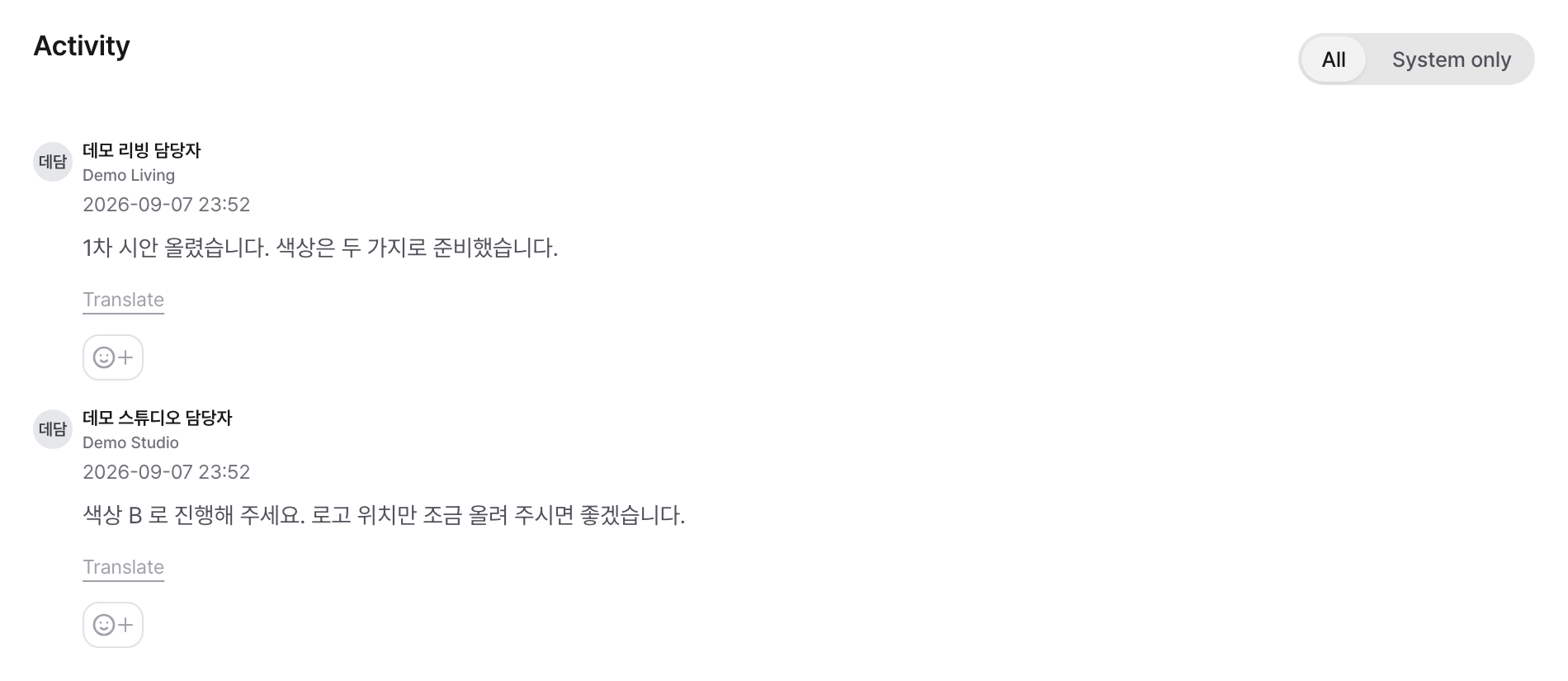
@mention
When you want to send a notification to a specific person, mention them with @name.
- Type
@in the input field. - A dropdown will appear showing people and User groups you can mention. You can narrow down the list by typing part of the name.
- Select the person or group to mention from the list.
- Post the message.
The mentioned person will receive a "mentioned you in a message" notification. If you call a group by @handle, a notification will be sent to the group members who can view this item. User groups are created in Workspace settings.
People who previously left a record on that item receive a "left a message" notification. That includes anyone who left an automatic record by submitting or approving, not only people who wrote messages. Mentioned persons receive only the mention notification, not this one.
Messages in other languages
If you click Translate below a message, it will be translated and displayed in your screen's language. Once translated, the translated text is displayed in the body from then on, and the original text can be opened via Show original. To return to the translated text, click Show translation. If someone else has already translated it, the translated text is displayed immediately.
The translated text displays a single line indicating the language it was translated from. Since only the text is translated, formatting is removed, but attached images, files, and link previews remain below as they are. The body of automated records written directly by approvers, such as approval and rejection reasons, can also be translated and viewed in the same way.
Buttons are not attached to messages already written in your screen's language.
Records the system leaves, such as assignee changes, stage changes, and file resubmissions, are shown in your screen's language from the start no matter who triggered them, so they have no translate button.
Descriptions for Products, Concepts, and Promotional materials, as well as approval request descriptions and notices, are translated in advance the moment they are saved. They are already visible in your language when opened.
On the announcement creation and editing screens, you can edit translations using the language tabs for the title and body. Enter the original, then open another language tab and click Translate. Manually entered translations are not overwritten. Translated bodies are plain text; images and files are kept with the original and are also shown in the translation view.
Edit and Delete Messages
- Edit: You can edit your own message directly by clicking the pencil icon at the top right of the message. Once saved, the body text changes and a (edited) label is appended.
- Delete: Clicking the trash can icon at the top right of your own message will delete it after confirmation. It disappears from the list immediately without needing to refresh.
You cannot edit messages written by others. The only person who can delete someone else's message is the workspace administrator.
Reactions (Emojis)
Clicking the smile icon below a message opens the emoji list. You can react quickly by selecting from 👍 ❤️ 😄 🎉 😮 😢 🙏 🔥. If you have registered Custom emoji in your workspace, they will appear together in the same list. Clicking the same emoji again will remove your reaction.
Hovering over an emoji chip (or long-pressing on mobile) allows you to see who reacted.
Load earlier activity
If there are many messages, only the latest 20 are initially displayed. Clicking the Load earlier activity button at the top loads additional older messages.
Timeline filter
You can switch the display using the All / System only buttons on the right side of the Activity area.
- All: View both general messages and automated logs.
- System only: View only automated logs such as approvals, rejections, and stage changes.
This button is not available in the Activity areas for Products and Concepts because they show only automated logs from the beginning.
Notifications
View notification list
Click Notifications in the left menu to open your notification list. The most recent 50 items are displayed in reverse chronological order.
When you open notifications from within a project, only notifications related to that project are filtered and displayed. In this case, since the number in the menu counts the entire workspace, the list may appear empty even though a number remains. Remaining counts in other places are included in the View all link.
The tabs above the list filter notifications by type. The Mentions tab shows only notifications where someone mentioned you directly in a message. The number next to the tab is your unread mention count, so you won't miss a message addressed to you, even when you have many other notifications. The Activity tab shows every message and reaction in conversations you take part in, including mentions.
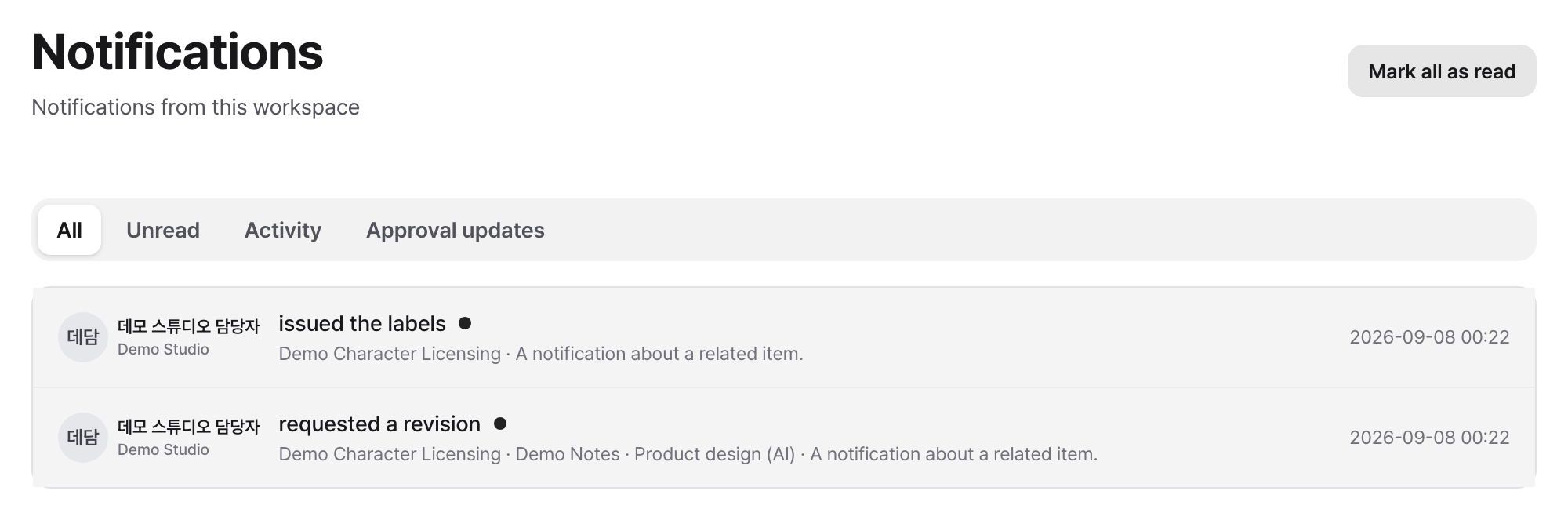
Clicking a notification moves you to that message
When you click a notification, you will be moved to the detail page of the corresponding target. In the case of Message notifications, the page will automatically scroll to the location of that message.
Mark all as read
By clicking the Mark all as read button at the top of the Notifications list, your unread notifications will be marked as read all at once. When you are viewing notifications for a specific project, it only processes the notifications for that project. Unread notifications from other projects that you haven't even viewed will not be cleared together.
Email notifications
In My profile > Notifications, choose which notifications you also receive by email. Your notification list collects every notification regardless of these settings.
- Send notifications by email: when off, no email is sent regardless of the settings below.
- Switches by area: you can turn Approvals, Labels, Contracts, Concepts, Messages, Assignments and participation, and Deadline notifications on or off one at a time. All are on at first.
Product stage moves and emoji reactions appear only in the notification list. They are not emailed even when email notifications are on.
Slack notifications
In My profile > Notifications, under Send notifications to Slack, click Link Slack, sign in to Slack, and allow access. You then also get the notifications we send by email as Slack DMs. Each DM says what happened and has an Open in Collaba button. Each person links their own Slack, and one person can link one Slack account.
The first person to link in a Slack workspace also needs to allow installing the Collaba app on the Slack screen that follows. Once it's installed, others using the same Slack only need to sign in to Slack. Linking Slack opens a Slack sign-in page in your browser, so if you aren't signed in to Slack in your phone's browser, it's easier to link from a computer.
You can also enter Collaba with Sign in with Slack on the sign-in screen. A linked Slack account signs in to its Collaba account. If it isn't linked yet but a Collaba account has the same email that Slack has verified, Slack is linked to that account and you're signed in. A notice email goes to that address. If no account has that email, a new account is created.
- In the Slack column of Notifications to receive, you can turn each area on or off. All are on at first. Like email, Deadline notifications are gathered into one message per workspace per day.
- Email notifications continue as before, whether or not Slack is linked.
- To unlink, go to Connected accounts on the Sign-in and security tab and unlink Slack.
- If we can't send because your Slack account was deactivated or the app was removed from that Slack, the link is shown as no longer working and Slack notifications stop. Unlink it, then link it again.
- A Slack account can be linked to only one Collaba account.
Ask Collaba in Slack
If you've linked Slack, you can ask the Collaba app directly in Slack. Mention it in a channel, like @Collaba show my tasks, or write your question in a DM with the Collaba app. It answers only with what you can see in Collaba, such as your tasks, upcoming deadlines, project status, and product details, and includes links to the items. It doesn't approve, edit, or change anything.
- If you ask in a channel, the answer is posted in that thread and everyone in the channel can see it. The answer is based on your permissions, so in channels with people from other companies, ask only about things they may see. If you ask in a DM, it answers in the DM.
- If you haven't linked Slack, it only explains how to link.
- Each person can ask up to 30 questions a day.
- To use it in a channel, the Collaba app must be invited to that channel.
Summary email
In My profile > Notifications, under Summary email, set How often to Off, Daily, or Weekly. It is Daily at first. Your choice is saved as soon as you select it.
A summary email is sent once per workspace at 8:00 AM, in the workspace's time zone. With Weekly, it is sent on Mondays only.
The email is split by the projects you've joined. It includes only projects with something to report, starting with the project that has the most tasks. Expired projects are left out. Tasks from projects you haven't joined are gathered at the bottom under Other tasks. Each project includes the following:
- My tasks: the same list and count as your tasks in the app.
- Upcoming deadlines: launch dates and stage approval due dates of products you can see. Daily covers today through three days ahead. Weekly covers deadlines through Sunday of that week. Deadlines that have already passed are in your tasks, so they are not listed here.
- Project status: sent only to workspace admins (the owner and the IP Provider managers). It shows that project's number of products in progress, approvals waiting for review, and items past their deadline. These are counted the same way as the workspace summary in the AI connection.
No email is sent on a day with no tasks and no upcoming deadlines. For admins, it is also not sent if no approvals are waiting for review and no items are past their deadline. If Send notifications by email is off, no summary email is sent regardless of the frequency. Only one summary email is sent per workspace per day.
Deadline Notifications
You're notified when the Launch date and stage approval due dates are approaching or have passed. A batch job checks every day at 8 AM (Korea time), starting one day before the due date and continuing until it's resolved. For how to set these up, see Register Products and advance stages and Configure stages and approvals.
- In-app: Only accumulates once per item, not again every day. If you change the due date itself, though, it's treated as a different due date and you're notified again.
- Email: Items due soon or overdue that day are gathered into one email per workspace per day. If you belong to multiple workspaces, you get one email per workspace, because the links in the email have to go to that workspace. If Send notifications by email or Deadline notifications is off, this email doesn't come either.
- Slack: If you've linked Slack, the same list also comes as one Slack DM per workspace per day. Turn it off with the Slack switch for Deadline notifications in Notifications to receive.
Recipients are an escalation, not everyone. The Partner side and the IP Provider side each go down their own chain, and each chain stops at the first person it finds.
| Side | Order |
|---|---|
| Partner | The Product's assignee → (if none) whoever registered the Product → (if none) every project member of that same company |
| IP Provider | Product approval assignee → (if none) the Workspace owner |
Anyone with an inactive account or who has left the company is filtered out at each step and it falls to the next one. Each line in the notification list also shows why you received it: whether you got it as the assignee, as the registrant or a company member because there was no assignee, or as the Workspace owner because there was no approval assignee.
Products on the On hold stage are not notified. While progress is stopped, the due date clock also stops. Approval items on the On hold stage are excluded for the same reason. The Product would need to move to that stage, but the stage itself is stopped. Completed Products, Products in a deleted project, and items whose approval is already done are not notified either.
Situations where notifications are sent
| Situation | Recipient |
|---|---|
| Message sent | Anyone who previously left a record on that item, automatic records included (excluding the author) |
| @Mention | The mentioned person. If a group is called, members of that group who can view this item |
| Emoji reaction to my message | The author of the message (even if the same person presses consecutively, it counts as one) |
| Product stage movement | The product assignees, Product approval assignees, and Edit products and move stages assignees (excluding the person who moved it) |
| Product assignee designated | The person designated as the assignee |
| Launch date approaching or overdue | Assignee escalation (see Deadline Notifications above) |
| Stage approval due date approaching or overdue | Assignee escalation (see Deadline Notifications above) |
| Approval requests submission, Approved, Rejected, Revision request, etc. | Relevant personnel (refer to the Approval manual) |
| Concepts submission, Approved, etc. | Relevant personnel (refer to the Concepts manual) |
| Label issuance request, Approved, Rejected, Issued | Relevant personnel (refer to the Label issuance manual) |
| Contracts registration, Approved | Relevant personnel (refer to the Contracts manual) |
| Design request sent, completed, cancelled | Request and cancellation: the designer. Completion: the requester (see Design in Registering Products and Advancing Stages) |
Status and rules
| Action | Who can perform it |
|---|---|
| Write message | An IP Provider side member or a member of the company that uploaded the item (Partner) |
| Add/remove emoji reaction | Same as writing a message |
| Edit message | Author only |
| Delete message | Author or workspace administrator |
| Edit/delete automatic record | No one (remains as is as a basis for judgment) |
Frequently encountered situations / Cautions
There is no message input box in the product details The activity areas of Products and Concepts are for reading automatic logs. Go to the details of the approval request associated with that Product or Concept to find the input box.
Even when I @mention, the name does not appear in the dropdown Only people who can view this item appear in the dropdown. IP Provider members appear regardless of project assignment, but Partner members will not appear until they join and are assigned to this project.
I sent a message, but the recipient says they didn't receive it Message notifications go only to people who previously left a record on that item. On an item with no earlier records, the first message has no recipients, so include an @mention when someone needs to know. For people who have email notifications turned off, it only accumulates in the Notifications list, and notifications are not sent to people who cannot view that item.
I want to hide only automatic logs There are two timeline filters: All and System only. There is no way to hide only automatic logs.
The launch date has passed, but I'm not getting a deadline notification Launch dates that passed before 2026-09-18 are not notified. The launch date wasn't originally entered for notification purposes, so items that were already overdue before this feature launched aren't all notified at once. For due dates after that, you're notified daily starting one day before. Products on the On hold stage, completed Products, and Products in a deleted project are not notified either.
Does a deleted message disappear immediately on other people's screens as well? Yes. When deleted, it is immediately removed from the screens of all members viewing the same page.
Related Features
- Submit and Review Approval Requests: Submission and inspection procedures for approval requests, integration with messages (reasons)
- Submit and Get Approval for Concepts: How concept status events are recorded as activity
- Register Products and Advance Stages: How stage changes are recorded as activity, Launch and approval schedule section
- Configure stages and approvals: Setting stage approval due dates
- Get Approval for Promotional Materials: Messages exchanged regarding promotional materials
- Apply for and Receive Labels: Receiving label-related notifications