Requesting and reviewing approvals
Products and Promotional materials require approval from the IP Provider to move to the next stage. This guide covers Partners submitting requests, IP Providers reviewing them, and resubmitting after receiving revision requests.
Who uses this
| Role | Main Actions | Path to Access Screen |
|---|---|---|
| Partner | Approval requests, Resubmission, Cancellation of approval requests | Projects → Products detail → 'Requests & Approvals' section |
| IP Provider manager, project administrator | Assign or change role assignees, check review status | Project → Roles and assignees / Product detail → Requests & Approvals |
| IP Provider (Current Assignee) | Approval, Conditional approval, Revision request, Rejection | Approval requests detail page → Check My turn on the sign-off chain |
Core concepts
Approval types
Each project can have multiple Approval types. Each type is given a name (e.g., "Design draft", "Sample") and a category.
There are two categories:
- Stage approval: Products cannot move to the next stage without receiving this approval. Movement is blocked until it is obtained.
- Ad-hoc approval: Approvals requested when needed, regardless of stage movement. Things called "Other approvals" on the screen, such as import permits or overseas manufacturing, fall into this category.
States considered completed approvals
Two states allow moving to the next stage:
- Approved: Official approval completed
- Conditionally approved: Status where progress is permitted with conditions attached. The stage can be moved, and the conditions to follow are delivered in the message the IP Provider writes when deciding, which stays in the messages on the approval request detail.
Both are considered to have received the mandatory approval for that stage.
Relationship with stage mandatory approvals
If Mandatory approvals are designated for the stage where a Product is located, all of those approvals must be received to move to the next stage. Approval alone does not move the stage. Once every approval is in, a person has to pick the next stage.
Resubmission history (Rounds)
Each time a resubmission occurs, the round number increases by 1. Since the description and attachments submitted at the time are kept separately for each round, you can view them side by side with previous submissions in the Resubmission history of the detail screen.
How to use
Partner perspective
Requesting approval
- Go to the Products detail page of the project.
- Select the Approval types to request in the 'Requests & Approvals' section.
- Write a description and upload the required files (original design files, sample photos, etc.).
- Click the Request button. A review notification is sent to the IP Provider, and the status changes to In review.
Note: To request a stage approval for a product linked to a Concept, that Concept must be approved first. Products with no Concept linked have no such condition.
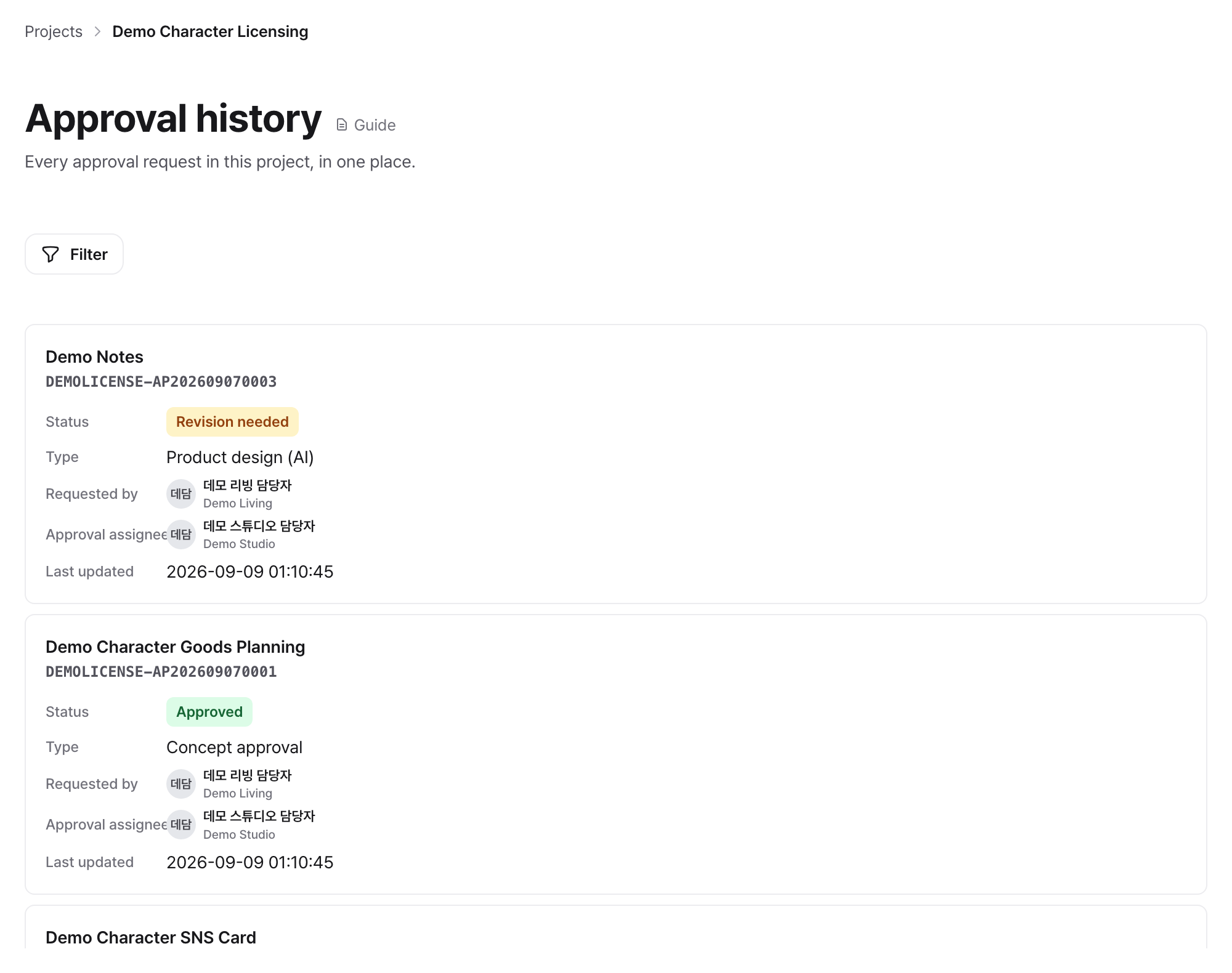
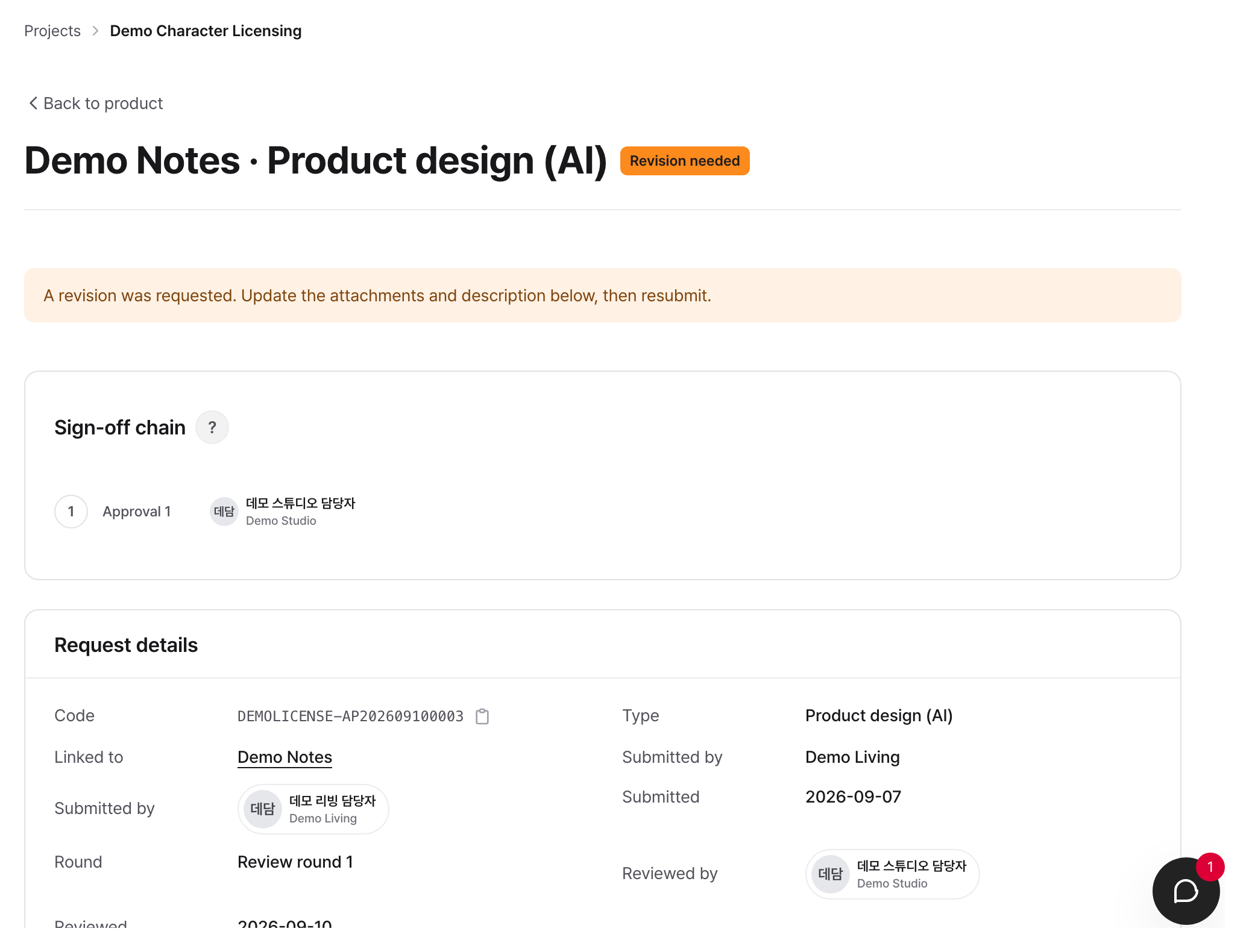
Resubmitting (when a revision is requested)
- Click the relevant request in the 'Requests & Approvals' section of the Product detail to go to the detail page.
- "A revision request has arrived" is displayed in the top banner, and the reason the IP Provider wrote appears as is under Revision request received.
- Modify the description or add/delete attachments, then click the "Resubmit" button.
- Upon resubmission, the round (Nth review) increases, and the existing message thread continues as is.
The screen to edit depends on the approval type. Follow the link shown in the approval request detail to open the relevant screen.
- Product stage approval: resubmit from that approval on the Product detail
- Promotional material: fix the files and description on the Promotional material detail, then resubmit
- Other approvals (import permit, overseas manufacturing): fix the application form, then resubmit
Cancelling an approval request
To cancel a request in the In review or Revision needed status, click Cancel approval request on the detail page. Upon cancellation, the request becomes Cancelled and remains only as history.
When conditionally approved
If the IP Provider approves with conditions attached, the conditions are delivered in the message written at the time of the decision. The Product can move to the next stage, but those conditions must be checked and reflected. Conditional approval is a closing status just like approval, so the IP Provider does not follow it with another decision. If a fresh review is needed, the IP Provider first returns it to In review with Revoke conditional approval.
IP Provider/Operator perspective
Reviewing approvals
- When a Partner requests approval, a notification goes to the assignee for the first step of the sign-off chain. Without a sign-off chain, review does not start, and the workspace admin and that Project's project administrator get a notification and a to-do asking them to assign an approver.
- Go to the Product details. Items in In review appear in the Stage approvals section.
- Check the details of the request. Review the description and attachments, and unfold Resubmission history to compare with previous submissions.
Note: None of the four decisions can be processed without a reason. That includes approval.
After a rejection
A rejection cannot be reversed. If another review is needed, the Partner has to submit a new approval request. Only three decisions can be undone: approval, conditional approval, and revision request.
Processing other approvals (import license / overseas manufacturing)
When a Partner submits an import license or overseas manufacturing application under "Other approvals" in the project menu, the IP Provider processes it using the same review workflow (Approved, Revision needed, Rejected). Other approvals are operational approvals unrelated to mandatory stage approvals.
Statuses and rules
Approval request statuses
| Status | Description | Mandatory approvals met |
|---|---|---|
| In review | Partner submitted; status is IP Provider reviewing | No |
| Approved | Official approval completed | Yes |
| Conditionally approved | Permitted to proceed with conditions | Yes |
| Revision needed | Partner must revise and resubmit | No |
| Rejected | Refused. Cannot be reversed and remains only as history | No |
| Cancelled | Partner cancelled the approval request. Remains only as history | No |
Rejected and Cancelled are finished states. They do not count as an approval you currently hold, and they are also left out of the round count when you apply again under the same approval type.
Status transition flow
The status names match what appears on the screen.
| Current status | Action taken | Next status |
|---|---|---|
| Draft | Partner submits | In review |
| In review | IP Provider reviews | Approved · Conditionally approved · Revision needed · Rejected |
| In review | Partner withdraws the application | Cancelled |
| Revision needed | Partner resubmits, or IP Provider cancels the revision request | In review |
| Revision needed | Partner withdraws the application | Cancelled |
| In review · Revision needed | The Product is deleted | Cancelled |
| Approved | IP Provider cancels approval | In review |
| Conditionally approved | IP Provider cancels conditional approval | In review |
| Approved · Conditionally approved · Rejected · Cancelled | None | Nowhere left to go |
Three decisions can be undone. Cancelling an approval, a conditional approval, or a revision request returns the request to In review, where it can be reviewed again. A rejection cannot be reversed.
Cancelling an approval or conditional approval carries one more condition. If the Product has moved to the next stage after approval, that approval cannot be reversed, because actions have already been taken based on that approval. In that case, return the Product to the previous stage before cancelling.
Permissions summary
| Action | Eligible roles |
|---|---|
| Request approval | Partner |
| Resubmit | Partner who submitted the approval request |
| Cancel approval request | Partner who submitted the approval request |
| Assign or change role assignee | Workspace admin, project administrator of that Project |
| Change the request-specific sequential sign-off chain | Workspace admin, project administrator of that Project |
| Approve · Conditionally approve · Request revision · Reject | Current approver |
| Cancel approval · Cancel conditional approval | Approver who made that decision (not possible after Products move to the next stage) |
| Cancel revision request | Approver who made the revision request |
Here, a project administrator is anyone assigned to a role with Project operations settings permission in that Project (default roles Project administrator and Project settings). Workspace admins are the owner and IP Provider managers.
Approvers and the sign-off chain
The person who submitted the request is excluded from approval. Project business permissions come only from assignments confirmed in Roles and assignees. Workspace owners and company administrators cannot approve unless they are assigned to the relevant business role.
- Only the assignees placed on the sign-off chain can approve. Holding a business role alone does not let someone approve; the role only makes a person eligible to be put on a chain. Chain candidates are limited to people who hold the relevant approval role.
- Nobody can approve a request without a sign-off chain until an assignee is assigned. A workspace admin or project administrator either assigns an assignee for this request with Assign in the approval request detail, or clicks Set sign-off chain to set the Default sign-off chain of the approval type. There is no automatic fallback to the Workspace owner.
- The Default sign-off chain of an Approval type applies to requests not yet under review and to later requests. Requests already under review don't change.
- With a sequential chain, only the assignee whose turn it is can act. That person must still hold the relevant approval role. If they lose it, a workspace admin or project administrator must designate another assignee for the request.
- In sequential approval, once one person approves, a notification goes to the next approver that it is their turn.
- People who can change assignees can adjust the sequential chain for this request from the approval request detail. While it is In review they can add approvers and reorder approvers who have not approved yet. The current approver can also be reordered, and whoever's turn it newly becomes is notified. Approvers who have not approved yet can be removed. Removing the current approver passes the turn to the next one. If every earlier step has approved, removing the last remaining approver completes the request as approved after a confirmation. If nobody has approved yet, the request is left without an approver. While it is Revision needed only replacing an approver is possible. Partners cannot edit the line.
For a request completed as approved after an approver was removed, the system records that the removal caused completion. The record includes who removed the assignee, who was removed, and the sign-off chain before and after the change. Approved by shows the person who gave the last actual approval.
Changes made in the sign-off chain editor apply only to this request. To use the same chain for this approval type, click Set project default sign-off chain. This opens the approval type for this project. Click Guide to see how to set the default chain. The link is visible only to people with permission to manage that setting.
Click the ? next to This request's sign-off chain on an approval request to open the help panel. It explains who
handles the request when there is no sign-off chain and when approvals go in order. The
Project member role determines screen access; business roles and the sign-off chain determine approval
authority and order.
Approval notifications are sent to assignees. Only when no assignee exists do the workspace admin and that Project's project administrator receive a notification that assignment is required. Being a workspace admin or an IP Provider manager does not let someone approve in the assignee's place.
Frequently encountered situations / Cautions
The Approval requests button is not visible. To request stage approval for a Product linked to a Concept, that Concept must be approved first. Check the status of the linked Concept in the Product details.
I approved, but the Product does not move to the next stage. Approval only permits the move; it does not perform it. Once every mandatory approval is in, pick the next stage on the Product detail and move it there. You can check whether the stage progresses via the mandatory approval badge next to the stage chip in the Product details.
A reason is required for every decision. Approval, conditional approval, revision request, and rejection are all refused with an empty reason. For a revision request, specifically enter what and how the Partner needs to fix.
Do all previous attachments disappear when I resubmit? No. In the resubmission form, you can keep existing attachments, delete them individually, or add new files. The contents submitted for each round can be viewed again anytime in Resubmission history.
Processing has stopped because the approver left the company or project. A workspace admin or project administrator reassigns the current step assignee from the approval request detail. Also fix the Default sign-off chain of the approval type so the next requests don't hit the same problem. The Workspace owner does not automatically approve in their place.
Where do I apply for Other Approvals (import permits, overseas manufacturing)? Select "Other Approvals" from the project menu. Import permit and overseas manufacturing forms are separate. After submission, a notification goes to the assignee for the first step of the sign-off chain. If there is no chain, the workspace admin and the project administrator get a to-do to assign an approver. Other Approvals are independent of stage mandatory approvals.
Related features
- Upload concepts and get approval: Stage approval can only be requested for approved Concepts
- Register Products and advance stages: Mandatory stage approval, and the procedure where a person moves it to the next stage after approval is complete
- Apply for and issue labels: When label requests open, and how issuance works
- Register and finalize Contracts: Contract conditions and permissions for Approval requests
- Messages and Notifications: Approval timeline messages, approver Notifications