Submitting and getting approval for Concepts
Before creating Products, you organize your ideas and concepts to get approval from the IP Provider. You register an approval request for each Concept, and the request, review, and approval details remain in the Concept details. Concepts must be approved before you can register Products.
Who uses it
| Role | Main actions | Screen access |
|---|---|---|
| Partner | Create concepts, submit approval requests, edit, re-request | Projects → Concepts tab |
| IP Provider Concept approval assignee | Review concepts, approve, request revisions, reject | Project → Concepts |
The Concepts tab is located inside the project. Select a project from the Workspace sidebar and click Concepts in the top tab.
Core concepts
What is a Concept
A concept records the idea and direction of the products that the Partner intends to create. The IP Provider must approve the concept before the Partner can register products. Each concept is an independent approval unit, and multiple products can be linked to one concept.
Mandatory Contract Linking
Concepts must be linked to an Active contract. If there is no contract or it is in an Expired state, new concepts cannot be registered. Even if the contract is renewed later, previously approved concepts automatically inherit the current active contract and can be reused for product registration.
Status
| Status | Meaning |
|---|---|
| Draft | Draft. Not yet submitted. Cannot be viewed by the IP Provider. |
| In review | Submitted. Currently under review by the IP Provider. |
| Revision needed | The IP Provider has requested revisions. The Partner must resubmit after making changes. |
| Approved | Approved by the IP Provider. Products can be registered. |
| Rejected | The IP Provider has rejected the concepts. Can be resubmitted after rewriting. |
If the IP Provider approves with conditions (Conditionally approved), the concepts are treated as Approved and Products can be registered. The details of the conditions can be checked in the messages on the approval request details page.
Concept timeline
On the Approval history of the concept detail page, the approval requests submitted for that concept accumulate in order. The current status of the concept follows the result of the most recently submitted approval request. Withdrawn requests are not reflected in the current status and remain only in the history.
At the bottom of the concept details, only system event histories are displayed separately from approval requests. General message input is handled in the discussion area of the approval request details.
How to use
Partner perspective
Registering a Concept
- Click Concepts in the top tab of the project.
- Click the Register concept button at the top right.
- If there are no active contracts, the button is disabled and a guide message is displayed. Add a contract first.
- Enter the items below.
- Concept name (Required): A name that clearly expresses the product idea.
- Contracts (Required): Select the active contract to link. If there are multiple active contracts, select the one that fits the concept.
- Contents (Optional): Write things the IP Provider needs for review, such as the concept background, direction, and reference images. Typing
/opens formatting menus like headings, lists, and quotes.
- Click the Register concept button to save. The saved concept is displayed in the list in a draft state.
Requesting Concept Approval
Right after registration, the concept is in the Draft status and cannot be seen by the IP Provider. To receive a review, you must submit an approval request.
- Click the Request concept approval button at the top of the concept detail page.
- There is nothing extra to enter. Since the content being evaluated is the concept itself, the approver sees the concept name, contracts, and contents as they are. To submit after making changes, you must first edit the concept using Edit before making the request.
- The status changes to In review, and the first assignee in the default sign-off chain of Concept approval is notified. If there is no chain, the workspace admin and the project administrator are notified that an assignee must be assigned.
Re-requesting After a Revision Request
If the IP Provider requests a revision, the concept status changes to Revision needed, and the reason is displayed on the timeline.
- Check the revision reason on the concept detail page.
- Press the Edit button to revise the contents.
- Press the Resubmit button in the concept details. There is nothing extra to enter here either; the revised concept is submitted again as is.
- The status changes back to In review, the revision round of the same approval request increments, and the message thread for that request continues as is.
Requesting Freshly After Rejection
If the IP Provider rejects the concept, the concept status changes to Rejected. Rejected requests cannot be undone and remain only as history. You can submit a new approval request after revising the same concept content.
- Check the rejection reason on the concept detail page.
- Press the Edit button to revise the contents.
- After revising and saving, submit a new approval request using the Request approval again button in the concept details.
Registering a Product After Approval
Once the concept status becomes Approved, the Register product button appears at the top of the concept detail page.
- Press that button, or move to Products in the top tab of the project.
- When selecting a concept in the product registration form, only approved concepts can be selected.
IP Provider/Operator View
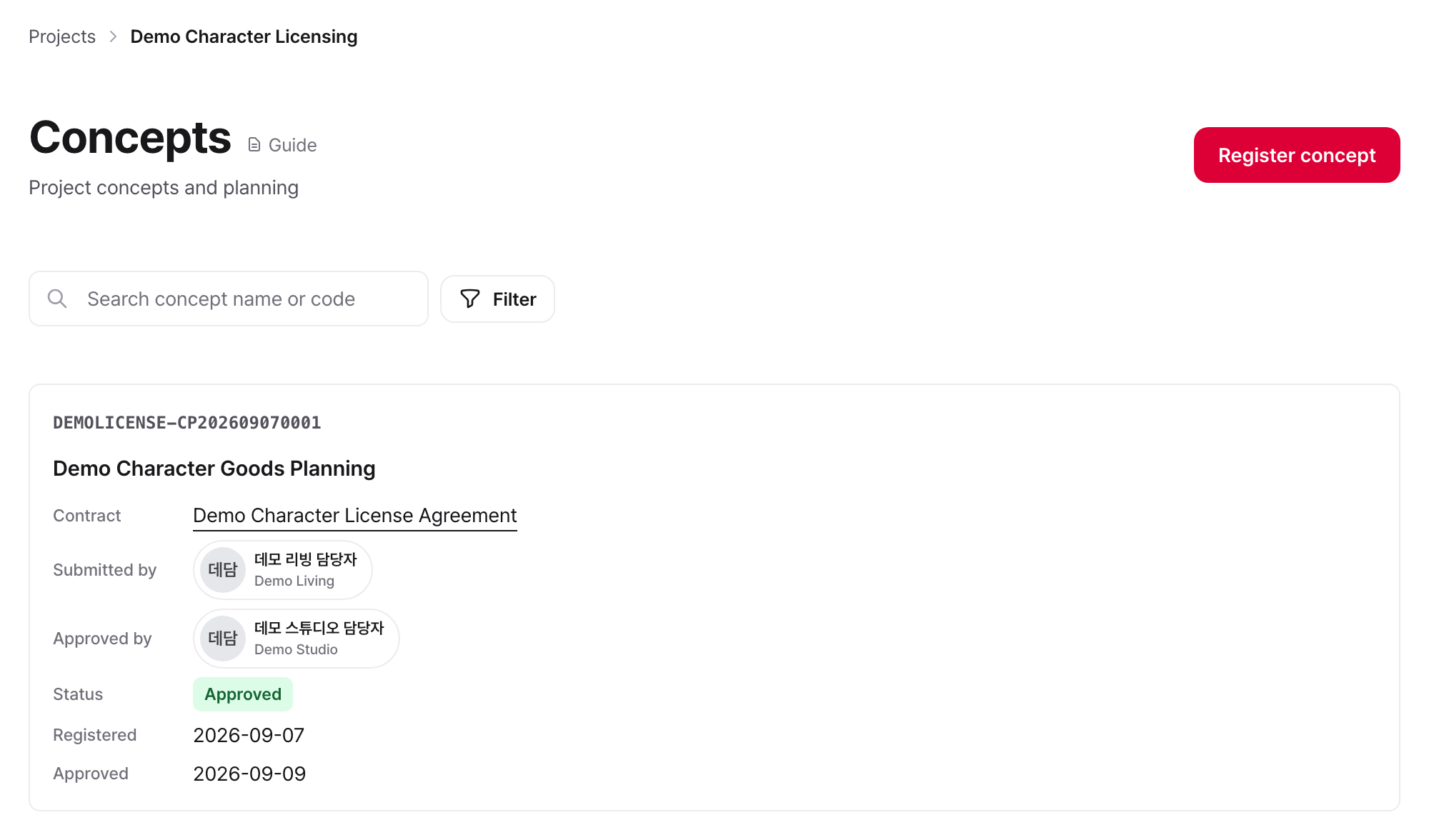
Checking the Concepts List
- Click Concepts in the top project tab.
- A list of submitted Concepts is displayed.
- Concepts in draft status are visible only to the Partner and are not displayed on the IP Provider's screen.
- You can filter by status using the top filter tab or narrow down by company.
- Click the Concept name to go to the detail page.
Reviewing Concepts
When a Concept is submitted, a notification is sent to the IP Provider person in charge.
- Review the Concept name, linked Contracts, and content on the Concept detail page.
- Check previous requests in Approval history and open the request to review.
- Write the reason in the message composition window of the approval request details and click one of the approval buttons below. There are four types of approvals: Approved, Conditionally approved, Revision needed, and Rejected. For any of them, you must write a reason for the button to be clickable.
Approving
- Write the reason in the message composition window and click the Approved button.
- The Concept status changes to Approved and a notification is sent to the Partner.
- The written reason remains as a message, and an approval event is recorded in the timeline.
Requesting a Revision
Use this when the Concept content needs supplementation, but not to the point of rejection.
- Write what needs to be supplemented and how in the message composition window. This content becomes the reason and cannot be left blank.
- Click the Revision needed button.
- The Concept status changes to Revision needed, and the written reason is recorded in the timeline. A notification is sent to the Partner. The Partner sees this reason as Revision requested because on the resubmission screen.
Rejecting
Use this when the Concept direction itself needs to be re-examined.
- Write the reason for rejection in the message composition window. It cannot be left blank.
- Click the Rejected button.
- The Concept status changes to Rejected, and a notification is sent to the Partner. Rejections cannot be undone. The Partner must revise the Concept and submit a new approval request.
Status and rules
Status Transition Flow
| Current status | Action | Next status |
|---|---|---|
| Draft | Partner submits Concept for approval | In review |
| In review | IP Provider approves (reason required) | Approved |
| In review | IP Provider conditionally approves (reason required) | Approved (with conditions attached) |
| In review | IP Provider requests revision (reason required) | Revision needed |
| In review | IP Provider rejects (reason required) | Rejected |
| Revision needed | Partner resubmits | In review |
| Revision needed | IP Provider cancels revision request | In review |
| Approved | IP Provider cancels approval · cancels conditional approval | In review |
| Rejected | Partner submits new approval request | In review |
| In review · Revision needed | Partner withdraws request | Draft |
Withdrawn requests are not reflected in the Concept status: if that was the only request, the Concept returns to Draft, and if there was a previous request, it returns to that result.
Rejections cannot be undone. Rejected requests remain only as history, and a new approval request is submitted for that Concept to be reviewed again. The three things that can be undone are approval, conditional approval, and revision request; undoing them makes that request In review again.
Permission Summary
| Action | Partner | IP Provider |
|---|---|---|
| Register concepts | O | X |
| Edit concepts (Draft · Revision needed · Rejected) | O | X |
| Delete concepts (Draft) | O | X |
| Approval request / Resubmit / Withdraw | O | X |
| New request after rejection | O | X |
| Approve · Conditionally approve | X | O (Concept approval assignee) |
| Request revision | X | O (Concept approval assignee) |
| Reject | X | O (Concept approval assignee) |
| View concept list and details | O (Including drafts) | O (Excluding drafts) |
Relationship between Concepts and Products
- Once a Concept reaches the Approved status, Products can be registered under that Concept.
- Products cannot be registered with Concepts that are not approved (Draft, In review, Revision needed, Rejected).
- Multiple Products can be linked to a single Concept.
- If the Contract linked to the Concept has expired, the system automatically finds the company's currently active Contract to use for Product creation.
Relationship between concepts and promotional materials
Promotional materials can also be selectively linked to concepts. Linked Products are displayed as a list in the Products area of the concept detail page, and promotional materials are displayed in a separate Promotional materials area. Linking promotional materials is optional, and whether they are linked does not affect concept approval or the progress of promotional materials.
Frequently encountered situations / Cautions
The Concept registration button is not visible or is disabled. This is because there is no active contract. Check the Contracts tab to see whether the contract is registered and approved. If there is no contract, ask a Create and edit contracts assignee to register one.
I withdrew an Approval request and now it looks like a draft. This is the intended behavior. Withdrawn requests are no longer treated as current approvals and remain only as history. Create a new Approval request if necessary.
I received a Revision needed request, but there is no edit button. If the Concept is in the In review status, it cannot be edited. You can edit it only after the status changes to Revision needed.
A Concept was Rejected and I want to make a new request, but I am worried the previous content will disappear. The Rejected Approval request remains in the history, and the Concept content is kept as is. You can edit and save it, then submit a new Approval request.
I am from the IP Provider side, but the Partner's draft Concept is not visible in the list. This is the intended behavior. Only Concepts from the submission (In review) stage onwards are displayed to the IP Provider side. Drafts are private until the Partner submits them.
The contract for an approved Concept has expired. Can I register new Products? Yes, you can. When registering Products from that Concept, it automatically finds and uses the current active contract. However, if there are no active contracts at all, you cannot register new Products.
Related features
- Submit and review approval requests: Approval requests and reviews for Concepts and Product stages
- Register products and advance stages: Product registration and stage management after concept approval
- Register and finalize contracts: How to register and finalize contracts required for concept registration