Starting a project
This is what the IP Provider manager does when first creating a project. It only needs to be done once before the Partner uploads products. It takes about 10 minutes.
Before you begin
When you create a project, six Product stages and nine approval types are already included. You can use them as they are. Only change the settings below if you want to adapt them to your company's workflow.
When creating a project, you choose a Product stages template and an Approval types template. If you leave the default selections as they are, the following items will be included. If you have modified the presets in your Workspace, the modified contents will be included instead.
- Stages: Concepts → Design draft → Sample production → Mass production → Launched (and On hold)
- Approvals: Product plan, Product design (AI), Packaging (AI), Mockup, Product sample, Finished product, Promotional material, Overseas manufacturing, Import permit
Business permissions come from Roles and assignees, not company roles. Even the Workspace owner cannot approve or change Project settings without the relevant business role.
Seven default business roles are created automatically in a new Workspace. For an existing Workspace, defaults are added only if it has no roles, so existing custom roles are preserved. Once roles are available, you can select assignees right after creating a Project in Project → Roles and assignees. Click Save to apply permissions. One person may hold multiple roles.
Workspace admins (the owner and IP Provider managers) manage roles in Business roles in the Workspace left menu. There, you can use the default roles, create custom roles with different names or permissions, and choose default assignees for new projects. Default assignees are automatically assigned to the role when you create a new Project, and assignees on projects you already created do not change. If all roles are later deleted and a Project has no roles, open the Business roles link on Roles and assignees to manage roles.
A workspace admin manages roles and assignees but does not automatically receive Contract, approval, or Label permissions. To handle that work, they must hold the business role themselves.
If you use the default roles, make sure you understand the difference between these roles:
- Project administrator: holds every business permission in one role. A small team that does not split duties can start with this role alone.
- Project settings: changes Project operations settings such as Product stages and Approval types. The same permission also lets this role assign Roles and assignees in that Project.
- Product operations and Product and content approvals: Product operations edits Products and moves stages; Product and content approvals reviews and approves Products. Product operations alone does not grant approval permission.
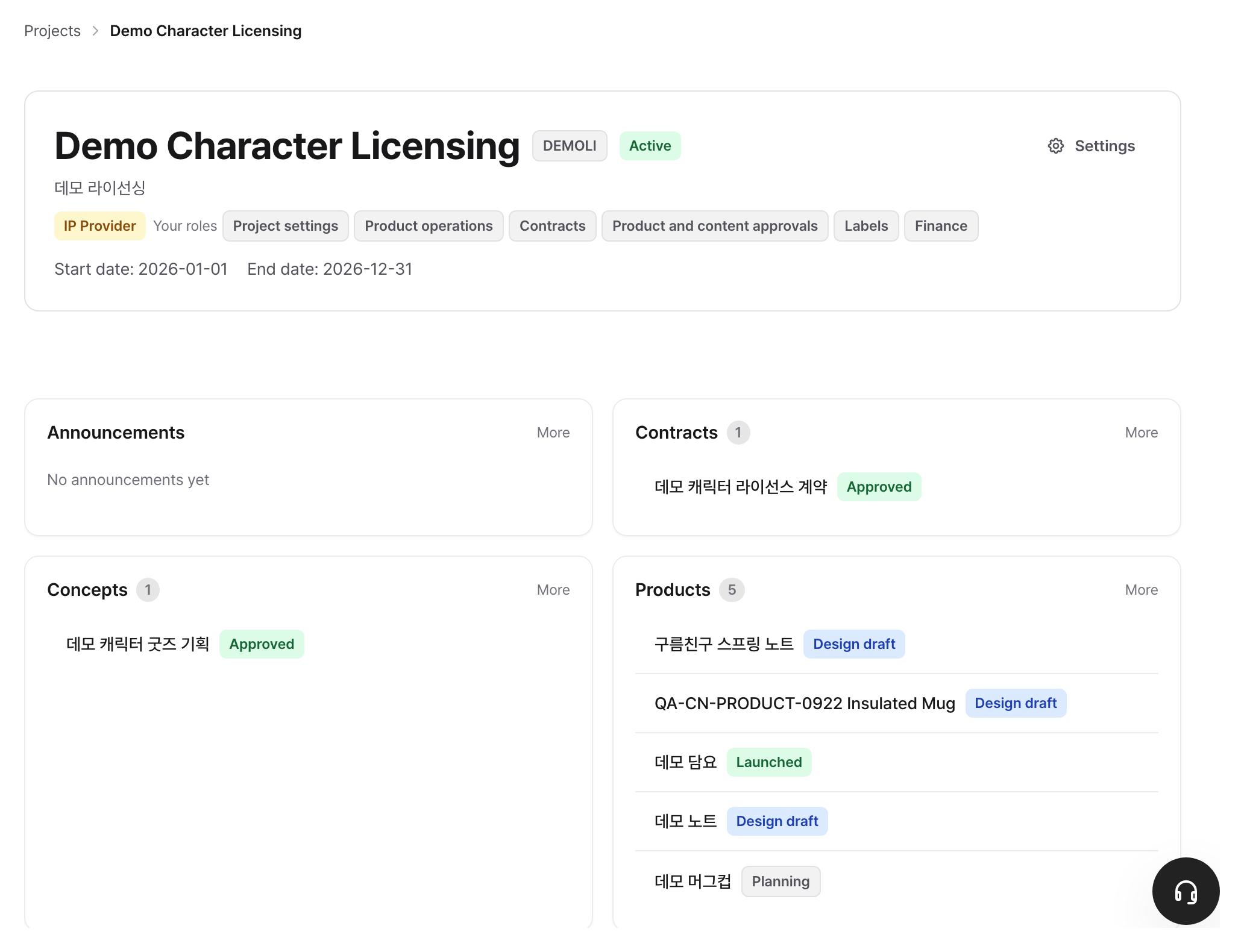
1. Modifying stage names
Change them to the terms you use. For example, changing Design draft to 1st Draft.
- In the project, click Product stages in the left menu.
- Click the name field of the stage you want to modify and type the new name.
- To add a stage, click Add stage, or click Delete on that row to remove it.
- Click Save. Additions, edits, and deletions are applied all at once when you click save.
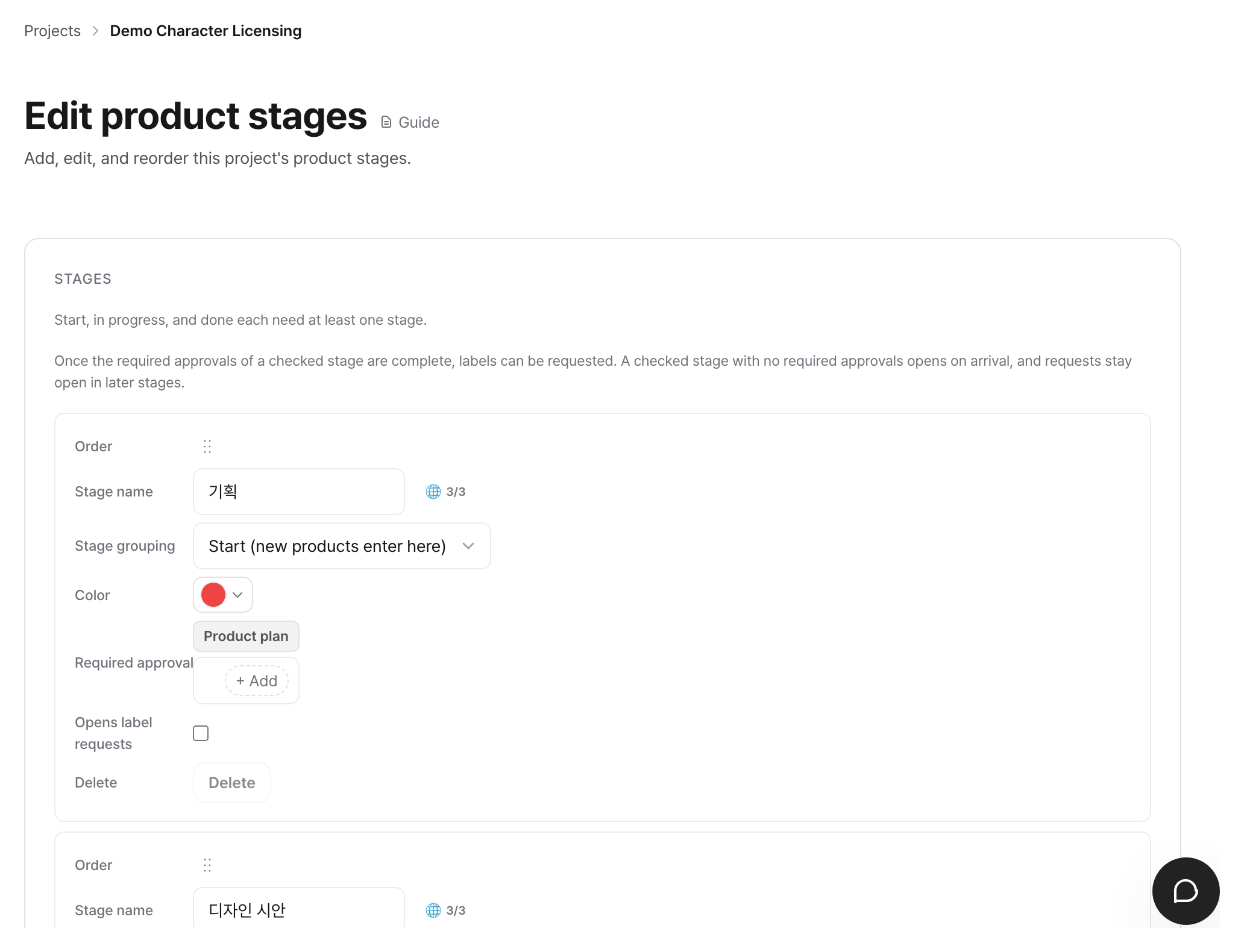
Each stage has one of Start, In progress, Completed, or On hold attached next to it. This is not a name, but a property. New Products start in the Start stage, and when they reach the Completed stage, the Products are finalized. Since Start, In progress, and Completed must each have at least one, the delete button is disabled for the last row of each of those categories. On hold does not have this restriction.
If there are Products in the stage you are trying to delete, a confirmation dialog will appear upon saving, and those Products will be moved to the immediately preceding stage before deletion. The very first stage, which has no preceding stage to move to, cannot be deleted.
2. Deciding what to get approved at which stage
This setting defines the approvals required at each stage. For example, you can require product design approval to move past the Design draft stage.
Changing this screen requires Project operations settings permission. If no one has it, ask a workspace admin or that Project's project administrator to assign the relevant role in Project → Roles and assignees. Permission does not automatically fall back to the Workspace owner.
- Click Approval types in the left menu.
- The screen is divided into two sections:
- Stage approval: What must be approved before moving to the next stage
- Ad-hoc approval: What is requested when needed, regardless of the stage
- In the stage approval section, find the Product design (AI) row.
- Select Design draft in the Stages column of that row.
- In the Approval assignees column of the same row, select the reviewers. If you select several, they approve in the order selected. Only people who hold the relevant approval permission can be selected. If you leave it empty, nobody can handle that approval until an assignee is assigned.
- Click Save.
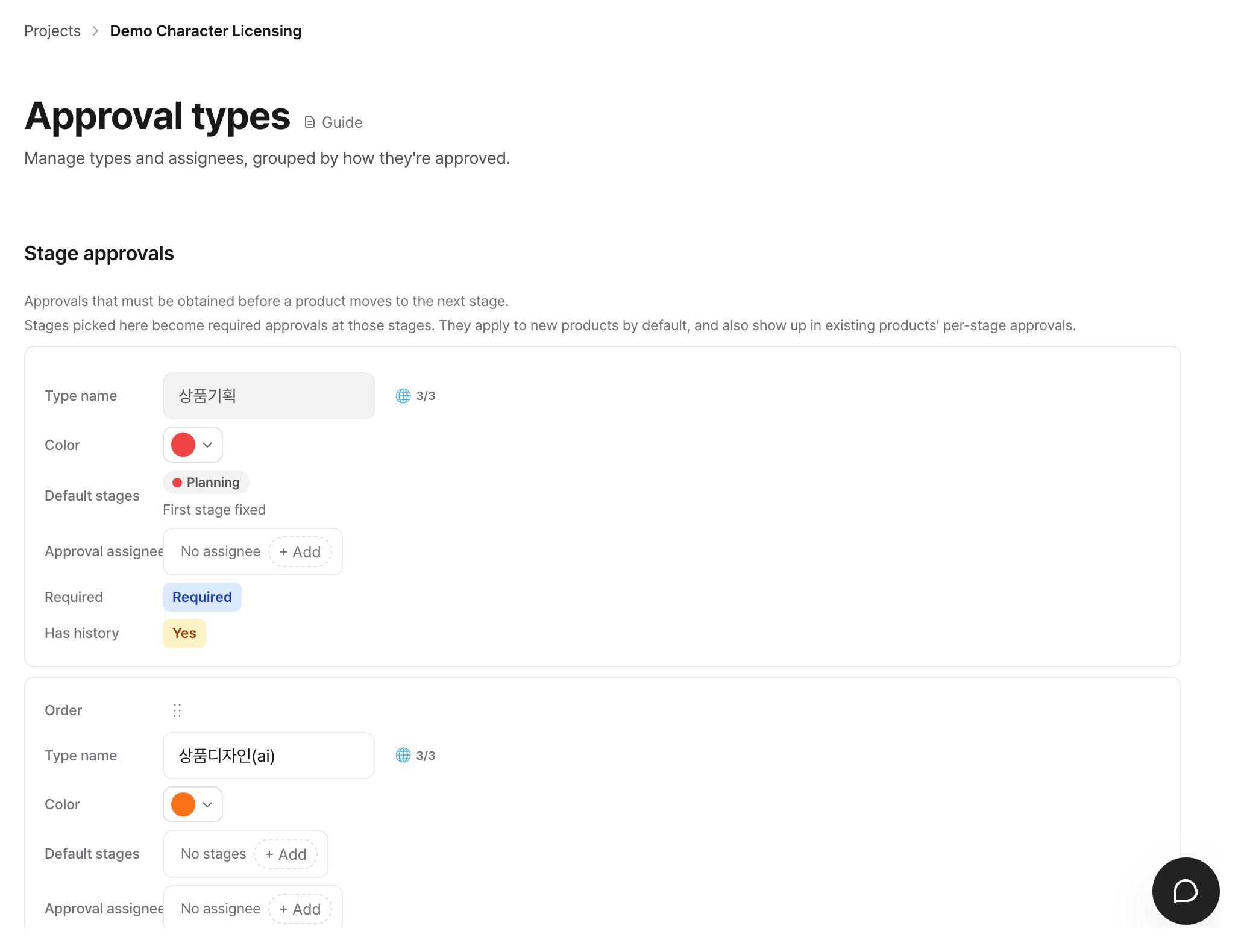
By setting it this way, the product design approval item for the Design draft stage is attached to all Products in this project. The Partner must receive that approval to move to the next stage. It applies not only to newly registered Products but also to already registered ones. If you remove it from the stage again, only items that have not yet been requested will disappear, while requested items will remain as review history.
If there are Products currently in that stage, a Confirm before saving dialog will appear once before saving. It shows how many items will have approval items attached and how many will be blocked immediately, so you must read it and click Confirmed. Save for it to take effect.
Assign stages for the remaining approvals in the same way. Approvals without a designated stage do not block any stage. Product plan is the only exception, as it is fixed to the first stage, meaning there is no box to select and it is displayed as First stage fixed.
If you designate multiple approvers, they approve in the order they were set. Only people who hold the relevant approval permission can be on the sign-off chain. If the chain is empty, nobody can approve, and when a request comes in, the workspace admin and project administrator get a to-do to assign an approver.
3. Check
You can tell if the settings have been applied by opening a Product.
- Click on any Product in Products on the left menu.
- If the approval you just specified appears in the This stage's approvals section below, it is done.
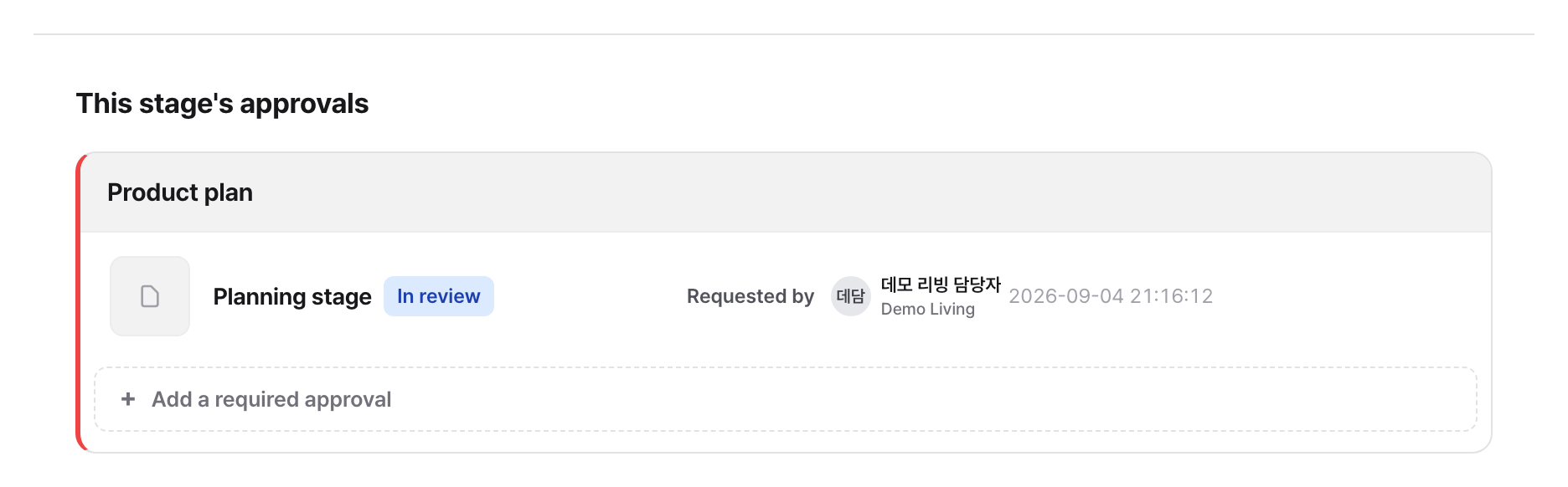
While approvals are pending, the next stage appears disabled with Current stage approval needed for Partners and assignees with Edit products and move stages permission. Assignees with Product approval permission can bypass this gate for stages other than the completed stage, so they may not see the indicator. Use the This stage's approvals list in step 2 to verify the setting.
When you want to customize a specific product
If a product does not have a package, you can remove the Packaging (AI) approval for that specific product.
- Open the details screen for that product.
- Click Settings in the Approvals per stage section.
- Approval types are provided as checkboxes for each stage. Uncheck to remove or check to add.
- Click Save.
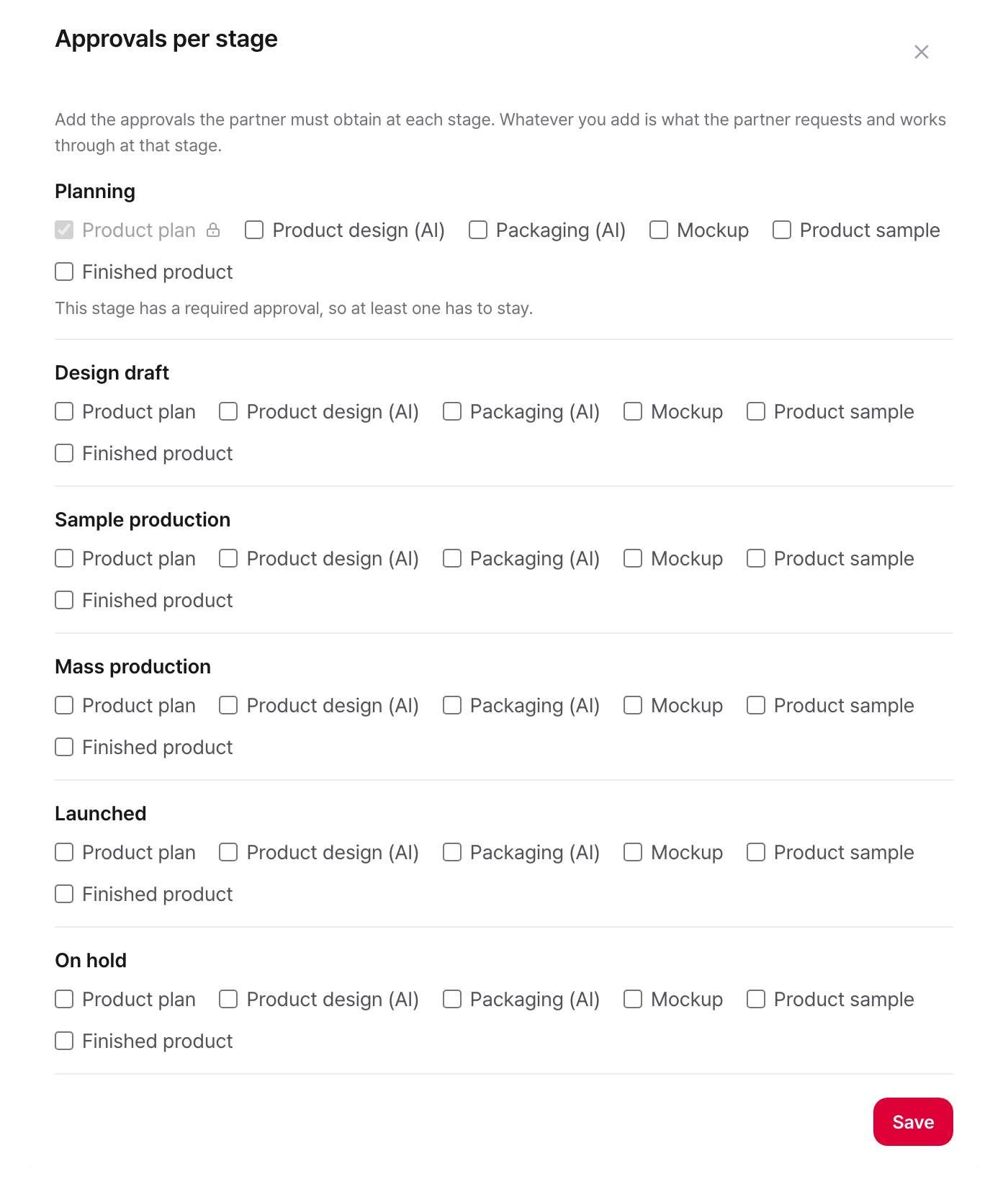
Items with pending applications have a lock icon attached and cannot be unchecked because review records must be retained. Applications that ended in cancellation or rejection are not locked and can be unchecked again. Stages with mandatory approvals must retain at least one, so the last item cannot be unchecked either.
This card is visible only to assignees with Product approval permission.
Troubleshooting
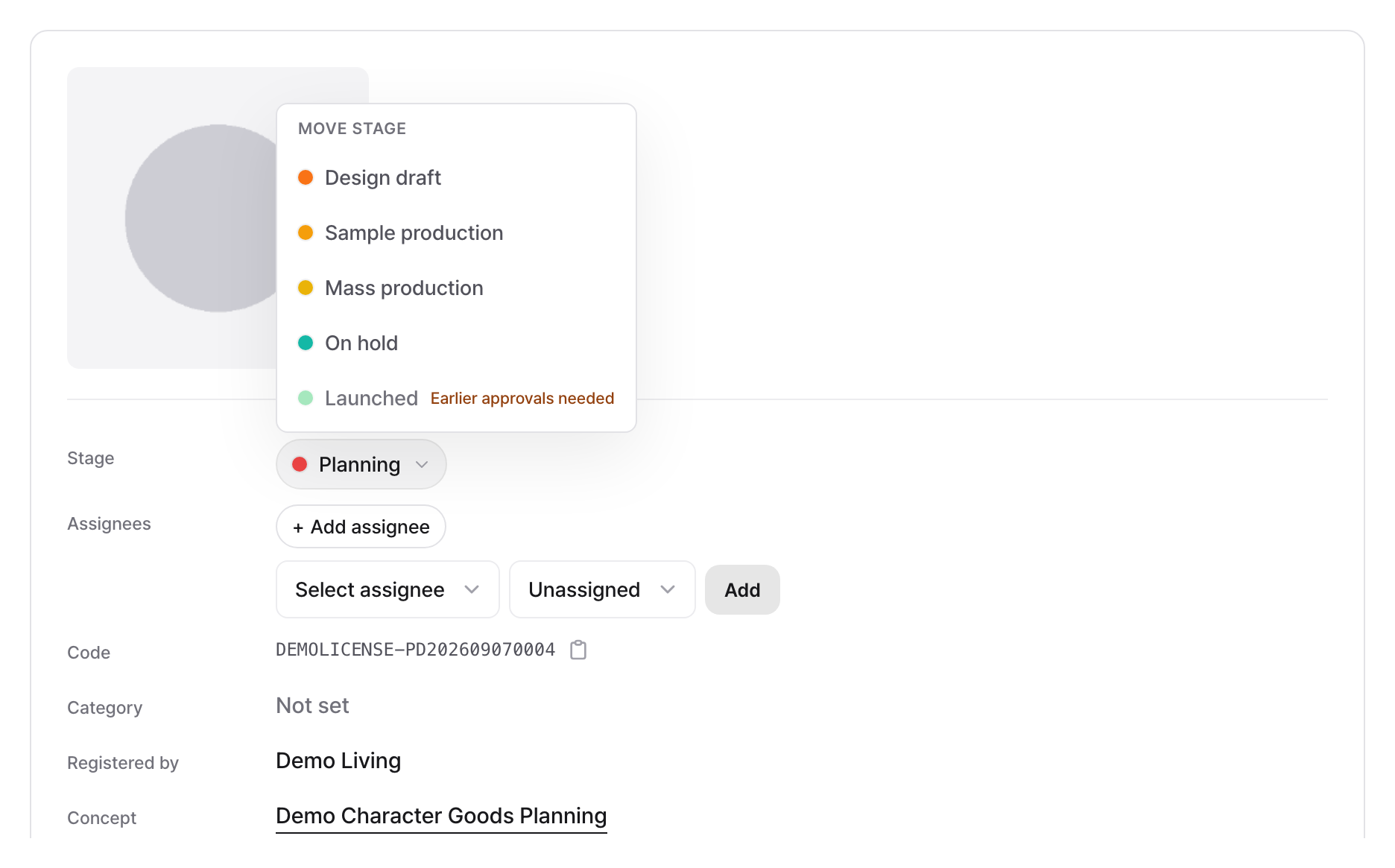
The next stage is disabled and cannot be clicked. There are unfinished approvals in the current stage. The Approvals for this stage area above shows which approvals remain. This gate applies to Partners and Product operations assignees. Product approval assignees may move to a non-completed stage while current-stage approvals remain.
Cannot move to Launched only. There are unfinished approvals in previous stages. Intermediate stages can be skipped, but all preceding approvals must be finished before moving to a completed stage. Product approval assignees are also subject to this condition. If that approval is not needed for this Product, remove it in Approvals per stage.
Approval item cannot be deleted. The request is still active, or that is the only approval remaining in that stage. If it is the latter, add another approval first, or remove the stage designation first from the Default application stage on the Approval types screen.
There is no delete button for the approval type. These four types cannot be deleted: Product plan, Promotional material, Overseas manufacturing, and Import permit. Product plan is a mandatory approval for the first stage, and the remaining three are used by the Promotional materials screen and other approvals screen to generate lists. Other types will not show the button while they are used as a mandatory approval for any stage. You can delete them by first removing that stage from Default stages and saving. You cannot remove and delete them in the same save action.
Approvals per stage is not visible in Product details. This card appears only to assignees with Product approval permission. Someone with only Project operations settings or Edit products and move stages permission can change Project stages or move Products as applicable, but cannot change the approval items for a single Product.