Applying for and Issuing Labels
Labels are authenticity labels attached to licensed products. This guide explains how Partners request them and how IP Providers review and issue them.
Who uses this
| Role | What they can do | Access path |
|---|---|---|
| Partner | Request label issuance, cancel requests | Project → Left menu Label issuance |
| IP Provider label assignee | Approve/reject requests, process physical issuance | Project → Left menu Label issuance |
| IP Provider payment and settlement assignee | Reverse the issuance | Project → Left menu Label issuance |
| IP Provider Project member | View list and details | Project → Left menu Label issuance |
Core concepts
What are labels
Labels are authenticity verification labels attached to licensed products. The IP Provider manages the issuance quantity, and the Partner requests and receives the required quantity before product release.
Label types
Only one type is currently available for selection.
| Type | Usage |
|---|---|
| General (Sticker) | For general sales |
The General (Sticker) type is used for both domestic and overseas sales. If you leave the type blank in the application form, the default label type specified for the Product is applied. The Product default is also General (Sticker).
Export/Sales (for printing) is a type carried over from legacy data. It cannot be newly selected now; only records previously saved with that type remain in the history.
Eligibility to request labels
You can request labels only when both of the following conditions are met.
- The Contract must allow Label issuance. The Contract associated with the Product must be in the Approved state, and Label issuance must be turned on in the Label issuance rights section of that Contract. If the Contract is expired or terminated, or if the right is turned off, applications as well as subsequent approvals and issuances will be blocked. Contracts past their end date will be blocked even if their status still appears as Approved.
- All required approvals of the checked stages must be complete. In Edit product stages, you can check Required for label requests for each stage. A new project starts with every stage before the Completed category stage (start and in-progress stages) checked, and you can change the check on any stage.
The second condition is judged as follows.
- Labels can be requested only when all required approvals of the checked stages are approved. If several stages are checked, the required approvals of every one of them must be approved.
- The product's current stage position does not matter. Reaching a stage or moving the product to another stage does not open label requests by itself.
- A checked stage without required approvals is not a condition. If none of the checked stages has required approvals, labels cannot be requested. In that case, set required approvals on a checked stage in Edit product stages.
- You cannot request labels in a hold category stage. The criterion is the stage category, not the stage name.
- Products that cannot request labels do not appear in the Product list on the request form. The label section of the Product details shows in a table which approvals in which stages are still pending.
Automatic calculation of amounts
When a label request is created and the product has a price, the amount is calculated automatically. If the contract has IP-specific contract terms for any of the product's Used IPs, those terms apply. If several terms match, the terms with the highest royalty rate apply. If no terms match, or the used IPs are left blank, the contract's base values apply. You can check the rate applied to a product in Applied rate on the product details.
An IP Provider member with the Create and edit contracts permission can set the rate in Applied rate on the product edit screen to a specific IP-specific contract term or a rate entered manually. If one is set, that value applies. A manually entered rate changes only the royalty rate. The label unit price and calculation basis follow the terms chosen automatically.
When you change a product's used IP or applied rate, the amounts of labels in Requested status are recalculated. Labels in Approved status are filled in only when the amount is empty, and issued labels do not change.
- Label fee = Label unit price × Requested quantity
- Royalty = Base amount (Manufacturer's suggested retail price or factory price of the Product depending on the calculation basis) × Royalty rate × Requested quantity
- VAT = Royalty × 10%
- Total (incl. VAT) = Royalty + VAT
If there is no product price, and neither a base rate nor IP-specific contract terms exist in the Contract, the amount is not calculated. If there are no IP-specific contract terms, there is also no calculation basis, so the manufacturer's suggested retail price is used.
When processing issuance, the amount is recalculated based on the actual issued quantity. The amounts in the Requested and Approved stages are estimates based on the requested quantity.
How to use
Partner perspective
Requesting label issuance
- Click Label issuance in the left project menu.
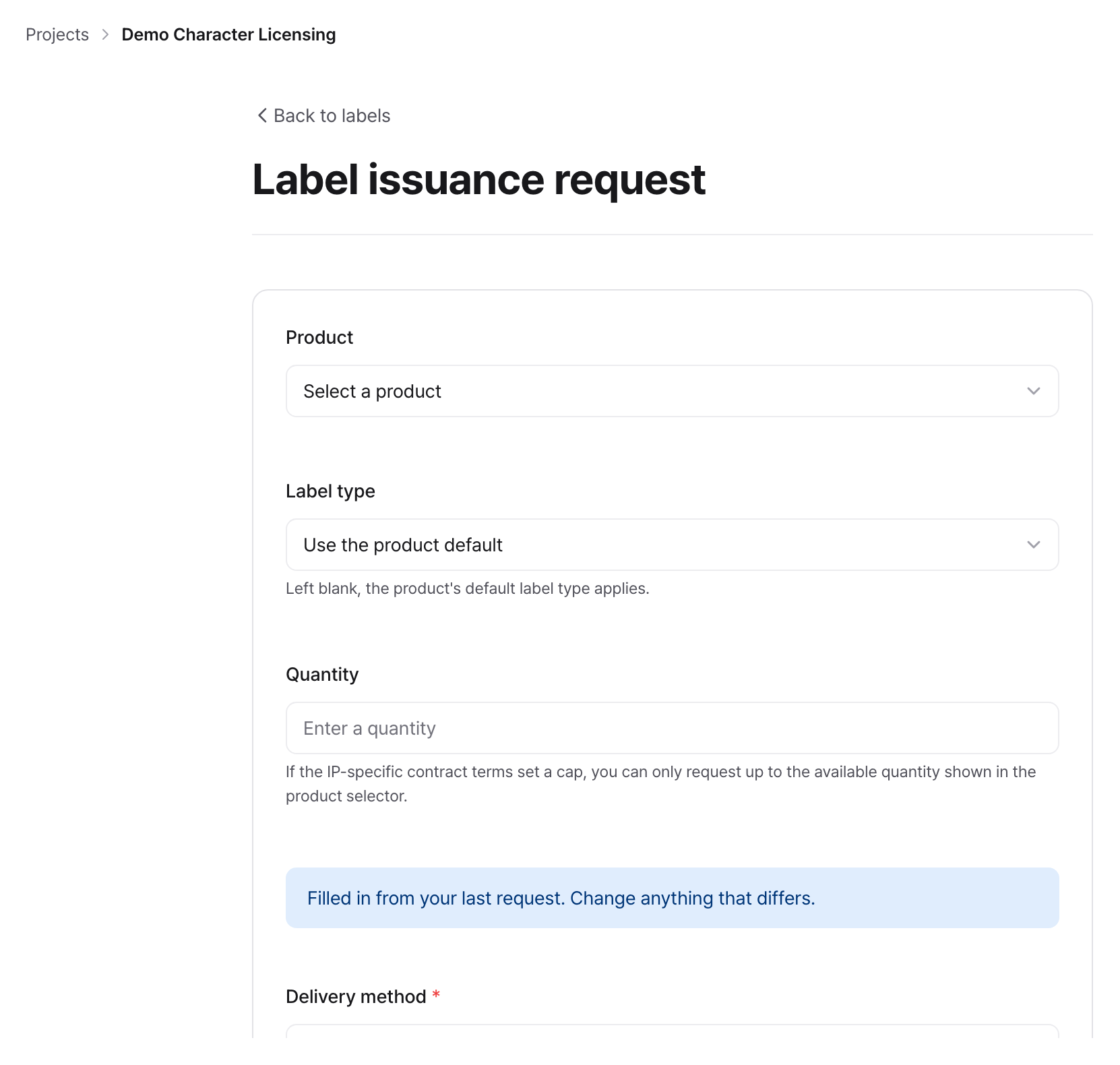
- Click the Request issuance button in the top right.
- If there are no Products with open label applications, the button will be disabled and an informational message will be displayed.
- Fill in the following fields in the application form:
- Product (required): Select from the list of Products with open applications. If there is a history of previous issuances, the past issued quantity will be displayed together.
- Label type: Select the type. If not selected, the Product default value is applied.
- Quantity requested (required): Enter the number of copies to be issued.
- Delivery method (required): Choose Courier or In person.
- Contact name and Contact phone (required): Both are required regardless of the delivery method.
- Shipping country, Postal code, Address, and Address detail: Enter only when using courier delivery (address is required). If you have an address saved in the company address book, Pick from the address book fills in the fields. The selected value can be modified only for this application, and the address book itself will not change. If you check Save this address to the address book, it appears in the list from your next request.
- Preferred delivery date: Optional.
- Request note: Enter any reference details, such as the reason for the request.
- Click the Request issuance button to submit.
- After submission, you are redirected to the detail page and an assignee of a role with Review label requests permission is notified. If there is no assignee, the workspace admin and the project administrator are notified that assignment is required.
Cancelling a request
You can cancel a request in Requested or Approved status. Requests that are Issued, Rejected, or already Cancelled cannot be cancelled.
- In the Activity section at the bottom of the request detail page, enter the reason for cancelling in the input box (required). The Cancel request button cannot be clicked until you enter a reason.
- Click Cancel request.
- In the confirmation window, click Confirm to cancel the request. The reason you entered is kept in the activity history. Click Cancel to keep the request as it is.
Checking progress
Check the current stage using the progress steps (Label issuance → Approved → Issued) at the top of the detail page. As the IP Provider reviews or processes the issuance, the status updates in real time.
IP Provider/Operator View
Managing Request Lists
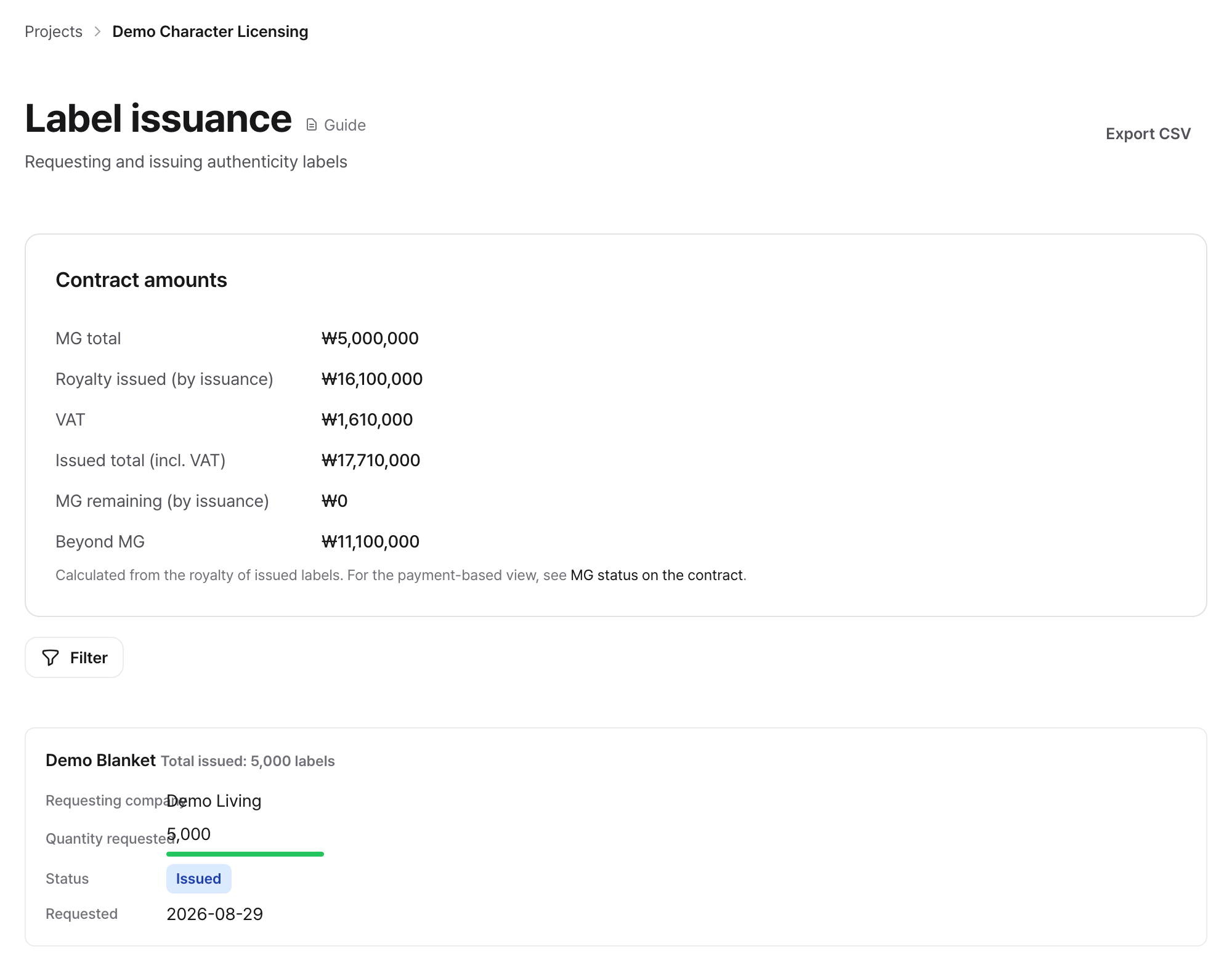
- View all issuance requests from Partners in Label issuance in the left project menu.
- Filter by status (Requested/Approved/Rejected/Issued/Cancelled) or by Partner.
- Download the list of requests using the Export CSV button.
Approving or Rejecting
- Click a request in the list to go to the detail page.
- In the Review label request section at the top of the detail page, enter the reason for your review in the input box. Both approving and rejecting require a reason; the Approve and Reject buttons cannot be clicked until you enter one.
- Click Approve or Reject. The reason you entered is kept in the activity history, where the Partner can see it.
- The processing result is sent to the Partner as a notification.
When processing approval and issuance, the contract's label issuance permissions and contract status are re-verified. If the contract has expired or permissions were disabled after the request, approval is blocked. Re-verification also occurs when issuing the remaining amount of a partial issuance.
Processing Physical Issuance (Label Issuance)
For approved requests, process issuance in the system after physical label delivery.
- Go to the request detail page in Approved status.
- In the button row under the input box in the Activity section at the bottom of the page, enter the quantity to issue this time. The remaining issuable quantity is filled in at first, and you cannot enter more than that. Issuing does not require a reason.
- Click the Issue button.
- The status changes to Issued, and a notification is sent to the Partner.
If you issue less than the approved quantity, the remaining quantity stays so you can continue issuing later. The remaining quantity is displayed on the detail page, and the issue button remains. The status appears as Partially issued. Payments are newly billed only for the amount issued this time, and previously issued portions remain at the amount calculated at that time. Even if rates or unit prices change midway, previously issued portions are not recalculated.
Even if two people issue the same request simultaneously, the system confirms only a quantity within the approved quantity. It does not create more than one automatically generated Payment for the same issuance portion.
Reverting Issuance
Revert when a quantity was entered incorrectly or the issuance itself needs to be cancelled. Only an assignee of a role with Payment and settlement management permission can do this. If no such assignee exists, this does not automatically fall back to the owner. Label review and issuance are separate from correcting the issuance and Payment ledger.
- In the details of the request in Issued status, enter the reason for reverting in the input box in the Activity section (required). The reason is recorded together in the corrective transaction left in the ledger. The Reverse the issuance button cannot be clicked until you enter a reason.
- Click Reverse the issuance.
- In the confirmation window, click Confirm to revert. The status returns to Approved and the approved quantity is restored, allowing you to issue again with the same request. Click Cancel to leave everything unchanged.
Existing records are not deleted. Instead of deleting the Payment item created by the issuance, a negative item of the same amount is left. This ensures that what was corrected, when, and how remains intact in the history.
You cannot revert if Payments have already been marked as Paid. This is to prevent settlements from being changed retroactively. In this case, you must check with the settlement person in charge first.
Enabling Label Issuance Permissions in Contracts
For Partners to apply for label issuance, permissions must first be enabled in the contract.
- Select the relevant contract in Contracts in the left project menu.
- Turn on Label issuance in the Label issuance rights section of the contract edit screen. Conditions can only be modified while in Awaiting internal approval status.
- The contract must be in Approved status for it to apply.
Statuses and rules
Status transition flow
| Current status | Action | Next status |
|---|---|---|
| Requested | IP Provider review assignee approves | Approved |
| Requested | IP Provider review assignee rejects (no further status change) | Rejected |
| Requested | Partner withdraws the request | Cancelled |
| Approved | IP Provider issuance assignee processes issuance | Issued |
| Approved | Partner withdraws the request | Cancelled |
| Issued | Continue issuing remaining quantity (partial issuance) | Issued |
| Issued | The assignee with Payment and settlement management permission reverts issuance | Approved |
Permission Summary
Only assignments confirmed in the project's Roles and assignees grant business permissions. An assignee with Review label requests permission approves or rejects requests, and an assignee with Label issuance permission issues approved requests. An assignee with Payment and settlement management permission reverts issuance. A label role alone does not grant permission to change amounts.
| Action | Partner | IP Provider work-role assignee |
|---|---|---|
| Create request | O (When there are products open for application) | X |
| Cancel request | O (In Requested or Approved status) | X |
| Approve/Reject | X | Review label requests |
| Process issuance | X | Label issuance |
| Reverse the issuance | X | Payment and settlement management (Before payment only) |
| View list/details | O (Own company requests only) | Project member scope |
Conditions for Opening Requests
| Condition | Description |
|---|---|
| Approved contract required | An Approved contract with label issuance permission enabled must be attached to the Products, and the end date must not have passed |
| Approvals of the stages that open label requests | All required approvals of the stages checked as Required for label requests in the Product stages editor must be approved (by default, every stage before the Completed category stage is checked) |
| Contract re-validation | Re-verify the contract status and label issuance permission at the time of approval and issuance |
| Issuance quantity limit | The quantity that can be issued in a single request is up to the approved quantity of that request |
Payments and settlement integration
When a label issuance request is created, if there is a product price, the label payments and royalty amounts are automatically calculated and displayed on the details page (the rate comes from the IP-specific contract terms if there are any, otherwise from the contract's base rate).
- When you process an issuance, the royalty payment for that issuance portion is automatically created. The status is Unpaid. Once actual deposit is confirmed, click Mark as paid on the Payments screen to change it to Paid.
- The royalty subtotal for settlements only counts payments that are Paid. Therefore, issuance alone does not change the settlement amount.
- Partial issuances remain separated by the amount issued: if you issue in three batches, there are three payments, and their sum is the generated amount for this request.
- Payments are managed under Payments at the bottom of the contract details.
Frequently encountered situations / Cautions
The "Request issuance" button is not visible or is disabled. This happens when there are no Products with open label applications in that project. Check the Labels section in the Product details to see which required approvals at which stage are remaining, and complete those approvals. If Label issuance rights are turned off in the Contracts, the button will not open even after all approvals are received.
An error occurs upon submitting a request stating that a contract with label issuance permissions is required. Either there is no Contract, the Contract has expired or been terminated, or Label issuance rights are turned off. Ask the IP Provider to configure the rights.
An error occurs upon approval. This happens if the Contract has expired or permissions were turned off after the request was made. Check the Contract status and, if necessary, renew the Contract or turn the permissions back on again.
An error occurs when entering the issuance quantity. The issuance quantity cannot exceed the approved quantity for that request. If you are continuing with partial issuances, you can only enter up to the remaining quantity.
Amounts are not displayed. If the Product has no suggested retail price or factory price, or if the Contract has neither a base rate nor IP-specific contract terms, the amount cannot be calculated. Check the Product pricing and Contract rate settings.
Details cannot be edited after Label issuance is complete. You cannot edit issued quantities or amounts directly. Ask the Payment and settlement management assignee to revert the issuance. Even the owner cannot revert it without that business role. Reversal is not possible after the related payment is marked Paid. Partial issuances can continue for the remaining quantity. Rejected requests cannot be reverted; submit a new request if needed.
Related features
- Register Products and Advance Stages: Moving Product stages and mandatory approvals for each stage
- Register and Finalize Contracts: Setting label issuance conditions, IP-specific contract terms
- Record and Settle Payments: Processing Label Payment disbursements
- Request and Review Approvals: Processing mandatory stage approvals