Registering and finalizing Contracts
License terms agreed upon by the IP Provider and the Partner are recorded within the project. Once a Contract is approved (Terms confirmed or Completed), the Partner can register Concepts and Products within those terms. If the IP Provider has also enabled Label issuance in the contract's rights, the Partner can apply for Label issuance too.
Who uses it
| Role | Access path |
|---|---|
| IP Provider contract assignee/administrator | Projects → Left menu Contracts |
| Partner member | Projects → Left menu Contracts |
IP Providers manage all contracts, including drafts. Partners can only view their own company's contracts that have completed internal approval within the projects they participate in.
Core concepts
Contracts: Belong to a single project and contain the details of a license agreement with a specific Partner. They include the contract period, settlement conditions, label issuance rights, IP-specific contract terms, and more.
Contract status: Divided into five types.
| Status | Meaning |
|---|---|
| Awaiting internal approval | A draft under review within the IP Provider. Not visible to the Partner |
| Terms confirmed | Internal approval is complete, but there is no final contract yet. The contract is visible to the Partner, who can register Concepts and Products and apply for Label issuance exactly as with Completed |
| Completed | A contract with the final contract uploaded |
| Expired | Automatically expired after the end date has passed |
| Terminated | Early terminated by the IP Provider |
Label issuance rights: The name of an area in the contract details and the contract registration form. When Label issuance is turned on, Partners can request authenticity labels. When it is off, they can't. Moving products between stages does not depend on these rights.
IP-specific contract terms: The contract entries where different royalty rates are set for each IP property. Each entry contains the IP property, global category, calculation basis, label type, royalty rate, and label unit price.
A product's applied rate is Automatic by default. With Automatic, the terms are chosen from the product's Used IPs.
- If any of the used IPs has IP-specific contract terms in this contract, those terms are used for the calculation.
- If several terms match, the terms with the highest royalty rate are used. If the royalty rates are equal, the terms with the higher label unit price are used.
- If no terms match, or the used IP is left blank, the contract's base royalty rate and base label unit price are used.
An IP without registered IP-specific contract terms can still be chosen as a product's used IP. You can check the rate applied to a product in Applied rate on the product details.
An IP Provider member with the Create and edit contracts permission can change the product's rate in Applied rate on the product edit screen. Choose one of this contract's IP-specific contract terms or Enter manually, or switch back to Automatic. Enter manually changes only the royalty rate. The label unit price and calculation basis follow the terms chosen automatically. Partners cannot change the applied rate. IP-specific contract terms set as a product's applied rate cannot be deleted.
Contract assignee: The assignments saved in Roles and assignees determine who may create and edit, approve, or terminate contracts. Current assignees of roles with each permission handle those actions. If no one is assigned to a role with Contract approval permission, approval does not automatically fall back to the owner. A workspace admin or project administrator must assign the role.
Project business permissions use only assignments saved in Roles and assignees. Approval work without an assignee does not automatically fall back to the owner, and the owner must also be assigned the relevant business role to approve.
Multi-step approvals where multiple people approve in order are configured in Approval types, not Contracts (approval type assignees are designated in order).
Contract renewal and Concept inheritance: When a new contract is signed with the same Partner after a contract expires, Concepts approved in the previous contract automatically inherit the company's current approved contract (Terms confirmed or Completed). New Products can be created under the renewal contract without having to resubmit Concepts.
How to use
Partner Perspective
Checking Contract Status
- Click Contracts in the left project menu.
- Click the contract title in the list to enter the detail screen.
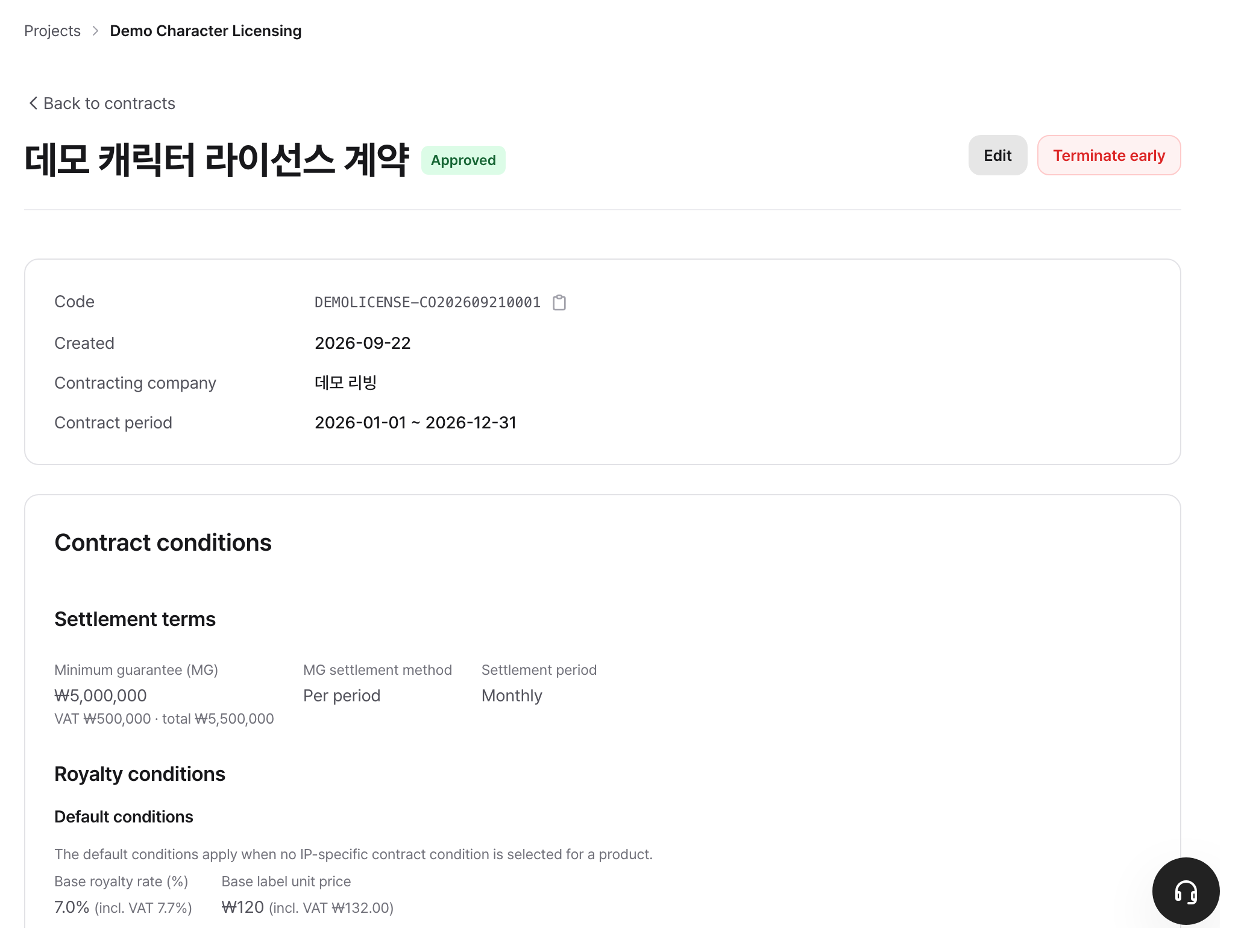
- On the detail screen, check the contract period, settlement terms, label issuance rights, and the list of IP-specific contract terms.
- Check whether Label issuance is turned on in the Label issuance rights area. If it is turned off, the Partner cannot proceed with a label issuance request.
Since drafts are internal review documents for the IP Provider, they are not displayed on the Partner screen. Once the IP Provider completes internal approval, the contract is published and a notification is sent. If there is no final contract yet, it shows as Terms confirmed, and the Partner can still register Concepts and Products. When the IP Provider uploads the final contract, the status changes to Completed and another notification is sent.
IP Provider/Operator View
Registering a contract
- Click the Contracts → Register contract button in the left project menu.
- Enter the fields in the table below.
- Clicking Save creates the contract in the Awaiting internal approval status and sends a notification to the IP Provider internal approver.
These are the fields entered on the contract registration screen.
| Field | Description |
|---|---|
| Contract name | Name for internal identification |
| Contracting company | Select the Partner participating in this project |
| Partner contact | Person at the Partner who will review this contract. This is not approval authority |
| Contract period | Start date and end date (required upon internal approval) |
| Contract summary | Summary of key contract terms |
| Minimum Guarantee (MG) | Includes contract currency, applicable exchange rate, MG settlement method, and settlement cycle |
| Territory restriction | Example: South Korea, Japan |
| Label issuance rights | Whether label requests are allowed. When on, the two fields below appear |
| Base royalty rate (%) | Required when label issuance is on. Applied when there are no IP-specific contract terms or the field is empty |
| Base label unit price (contract currency) | Required when label issuance is on. Applied when the IP-specific contract terms have no label unit price |
| Attached documents | Optional. Term sheets, drafts, and similar. PDF, PNG, JPEG (under 200MB each) |
| Final contract | Optional. Upload the signed contract if you have it. With it, approval completes the contract. Without it, the contract becomes Terms confirmed after approval |
Check the contract name and status at the top of the details screen. While it is awaiting internal approval, edit the terms and click Save. Use Approve contract at the top to approve it. For an approved contract, use Edit or Terminate early in the same area. In Contract conditions, check the default terms and IP-specific contract terms under Royalty conditions. The Payments and Settlements buttons below the condition cards show the counts of viewable entries. The rates and unit price are used only to calculate label issuance amounts. Enter them only on a contract that allows label issuance, and the Royalty conditions on the contract details also appear only then. If you leave them blank, the project default applies. If there is no project default either, you must enter them to save. The same applies when you turn on label issuance later. An explicitly entered 0 is distinct from an unset value.
Contract internal approval and publication
- Review the details on the contract details screen.
- Edit first if necessary (conditions can only be modified while in the Awaiting internal approval status).
- Click the Approve contract button at the top. The confirmation window shows the result of approval: Completed if a final contract is attached, Terms confirmed if not. If the start date or end date is empty, it will be blocked here.
- The approved contract is published to the Partner and a notification is sent to Partner members.
Registering the final contract
A contract in Terms confirmed shows "Upload the final contract to complete this contract." above the details. It also stays in the To-do list as Final contract needed for assignees with Contract approval permission. There is no deadline.
- Click Upload final contract at the top of the contract details.
- Upload the signed contract file (PDF, PNG, JPEG) and click Register.
- The contract changes to Completed, and a notification is sent to Partner members.
The Partner screen has no upload button. It only shows "The contract will be completed once the final contract is uploaded."
Managing IP-specific contract terms
You can manage IP-specific contract terms on the contract details screen. Register them only when royalty rates differ by IP. These terms are shown only on contracts that allow label issuance. If a product has no matching IP-specific contract terms, the contract's base rate and unit price apply.
On a contract with Label issuance rights on, Base royalty rate and Base label unit price are both required. Products without matching IP-specific contract terms use these base values.
Register terms one by one for each IP property, and enter the following fields:
| Field | Description |
|---|---|
| IP property | Select an IP property registered in the workspace. Required, one entry per IP per contract |
| Global category | Product classification specified in the contract. Example: Apparel, Stationery |
| Calculation basis | Whether the royalty base amount should be the product's recommended retail price or factory price |
| Label type | Label type to apply to this condition (optional) |
| Royalty rate (%) | Uses the contract's base royalty rate if left blank |
| Label unit price (contract currency) | Uses the contract's base label unit price if left blank |
Enter the royalty rate and label unit price to match the contract. Defaults of the IP property are not imported automatically. If a product's Used IPs include the IP property of these terms, they are used for that product's calculation. If other terms of the same contract also match, the terms with the higher royalty rate are used.
IP-specific contract terms can be added or modified in the Awaiting internal approval, Terms confirmed, and Completed statuses before the contract end date. Terms for Expired or Terminated contracts cannot be modified. An unexpired approved contract can only be renamed or have IP-specific contract terms added or changed; an expired or terminated contract can only be renamed. When royalty rates or unit prices are modified, the amounts for labels still in Requested or Approved statuses are recalculated. Already issued labels remain at the amount from the time of issuance. Adding or deleting terms applies the same rule to the labels of products that use that IP property. Terms already used to calculate a label amount cannot be deleted.
Contract termination
Contracts can only be terminated when they are in the Terms confirmed or Completed status. Termination cannot be undone.
- Click the Terminate early button next to Edit at the top of the contract details screen.
- If you agree in the confirmation popup, the contract transitions to the Terminated status.
Status and rules
Status Transition Flow
Awaiting internal approval → Terms confirmed → Completed  [Final contract uploaded]
                             (With a final contract, approval completes the contract)
Approved contract → Expired    [Automatic, end date passed]
                  → Terminated [IP Provider manual]
Deletion is only possible in the Awaiting internal approval status. Approved contracts and contracts in Expired or Terminated status cannot be deleted.
Role-based Permissions
The current assignees of roles permitted to register, edit, or delete contracts, approve contracts, and terminate contracts perform those actions. Permissions may be combined in one role or divided across roles. Holding a business role does not grant Product editing or stage movement, company, or member management permissions.
Project business permissions use only the assignments confirmed in Roles and assignees.
| Action | Required project business permission | Partner Member |
|---|---|---|
| View contract list and details | Project member scope | Approved, expired, and terminated contracts of own company |
| Register, edit, or delete contract | Create and edit contracts | X |
| Approve contract | Contract approval | X |
| Upload final contract | Contract approval | X |
| Terminate contract | Contract termination | X |
| Open attached document in new window | Project member scope | O |
Contract approval is available only to the current assignee of a role with Contract approval permission. Owners cannot approve without that role.
Conditions for Label issuance to open
You can apply for Label issuance for the corresponding Products only when Label issuance for the Contract is turned on, the Contract is approved (Terms confirmed or Completed), and the end date has not passed. You cannot apply for Label issuance if permissions are turned off or if the Contract is in Expired or Terminated status. For Contracts past their end date, applications are blocked even if the status has not changed yet.
Contract currency and exchange rate
If the contract currency differs from the workspace base currency, an Exchange rate is required. When you select a currency, the published rate for the date you create the contract (Korea time) is fetched automatically. It shows how much 1 unit of the contract currency is worth in the base currency. The supported currencies are KRW, JPY, USD, EUR, and CNY.
The actual publication date appears below the automatically applied rate. On weekends and holidays, the rate may be from the previous publication date. You can edit the applied rate. If lookup fails or the currency is unsupported, enter the rate manually. A saved contract's rate is not automatically updated to the latest rate.
Settlement comparisons and MG status are all converted and displayed in the base currency. The base currency is set in the workspace settings, and the default is KRW. Because the base currency at the time the contract is created is recorded together in the contract, changing the workspace base currency later does not change the meaning of the amounts in already concluded contracts.
Frequently encountered situations / Cautions
Contract drafts are not visible on the Partner screen. This is normal behavior. Drafts are not exposed until the IP Provider's internal review is complete. Once the Contracts are approved, they will appear in the list and Notifications will be sent.
The "Approve contract" button is not visible on the IP Provider screen. Check that you are assigned to a role with Contract approval permission in Roles and assignees. Ask a workspace admin or project administrator to change the assignee if needed.
Can we proceed with Concepts and Products before the final contract is uploaded? Yes. In Terms confirmed, Concept and Product registration and Label issuance requests work exactly as in Completed. Upload the final contract once signing is done.
I want to modify an approved contract. Approved Contracts allow changes only to the contract name and IP-specific contract terms. The contract period, label issuance rights, attached documents, the base royalty rate, and the base label unit price cannot be changed because they are terms agreed with the Partner. If you need to change these terms, terminate the Contract and create a new one. The royalty rate and label unit price in IP-specific contract terms can still be added or edited on an Approved Contract.
The contract has not changed to Expired even though the period has passed. Entering the contract details screen allows the system to automatically check for expiration and update the status. Batch jobs also process expirations periodically.
The Partner says they cannot request Label issuance. Check if Label issuance is turned on in the Label issuance rights area of the contract details. If it is turned off, terminate the contract and create a new one, or edit it and turn the right on while the contract is still Awaiting internal approval.
Can I create Products using approved Concepts from a previous contract? Yes. Even if a contract with approved Concepts expires, if there is a newly approved contract with the same Partner, the new contract automatically inherits those Concepts. There is no need to submit and get approval for the Concepts again.
Where do I set who will approve Contracts? In the project's Roles and assignees, select the assignee for a role with Contract approval permission and click Save. The Workspace owner must also be assigned to that business role to approve. The contract registration form has no assignee field.
Related features
- Apply for and review approvals: Approval requests, submission, review, multi-stage approval
- Submit and get approval for concepts: Concept creation, submission, approval
- Register Products and advance stages: Stage progress, stages where Label issuance opens
- Apply for and issue labels: Label issuance requests, processing, and settlement integration
- Record and settle Payments: MG payment status and settlement processing