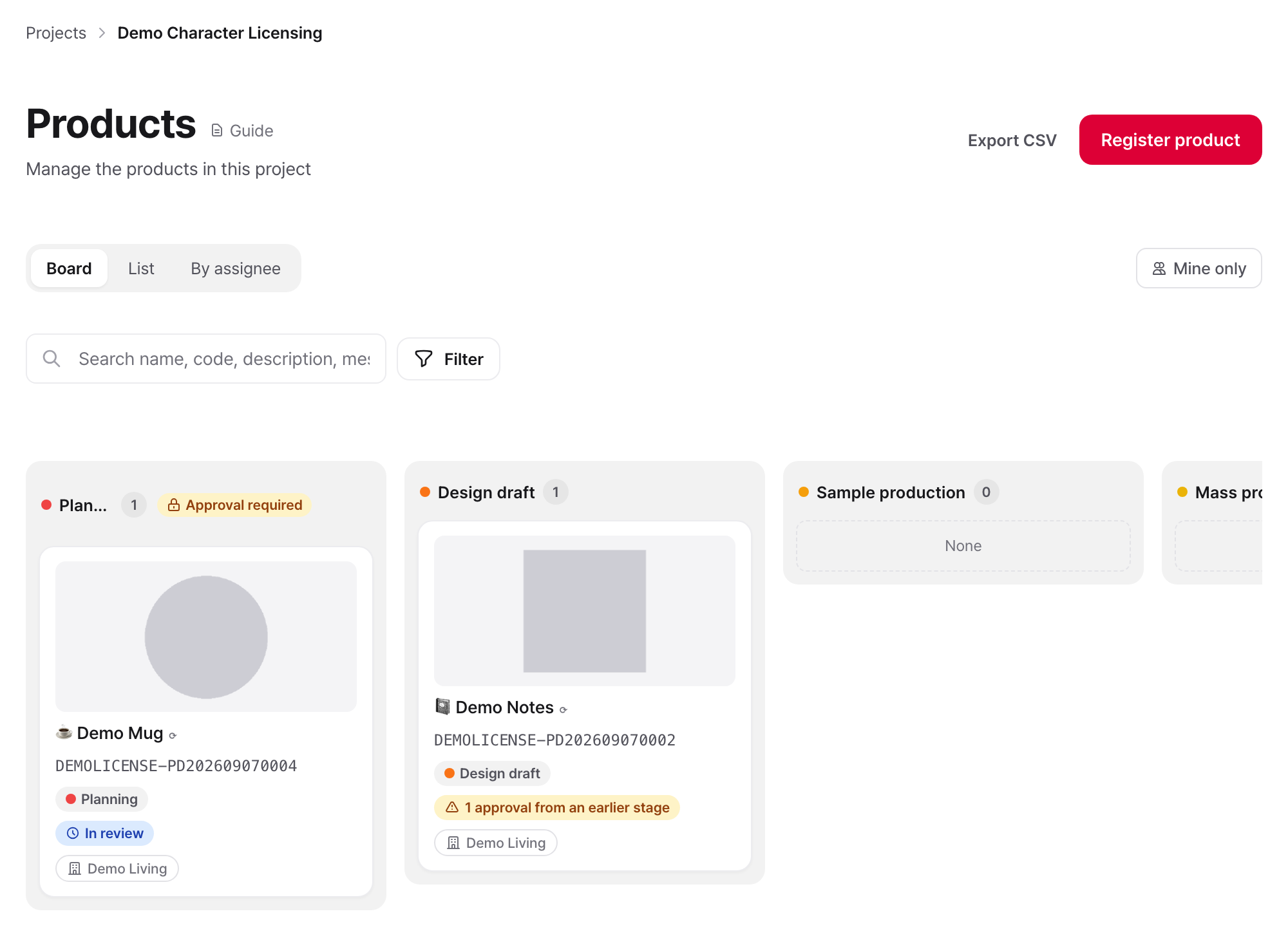
Submit concepts and artwork, collect approvals and request labels in one place. The screen tells you what you are waiting on and what is yours to do next.
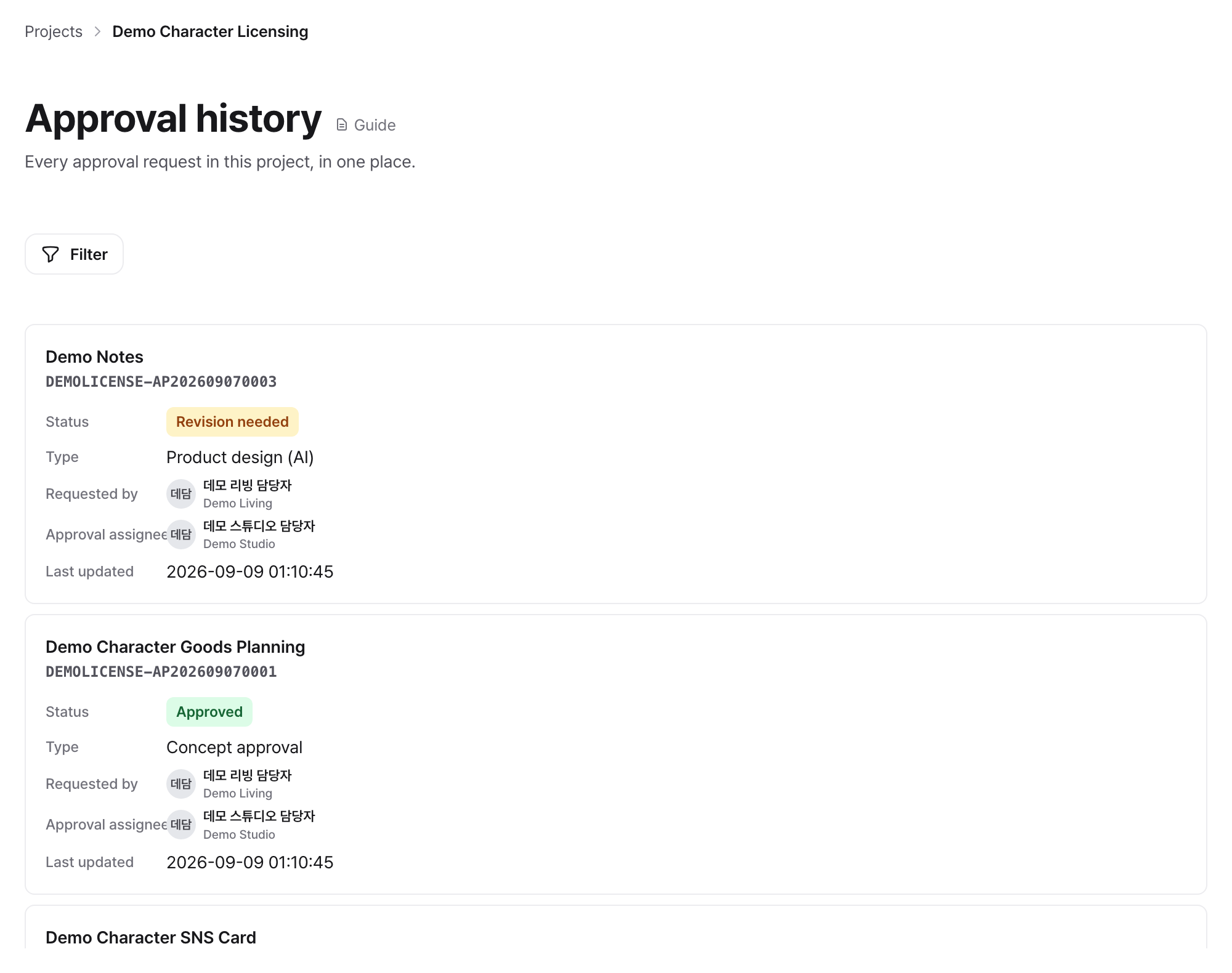
Submission historyNo more guessing which revision is current
Your languagePress a message to read it translated
What changes
TodayWith Collaba Studio
Sending artwork by email with no idea when an answer will come
The status of every request you filed shows on the product
Working out which revision of which file is final
Submissions stack in order, so the latest one is obvious
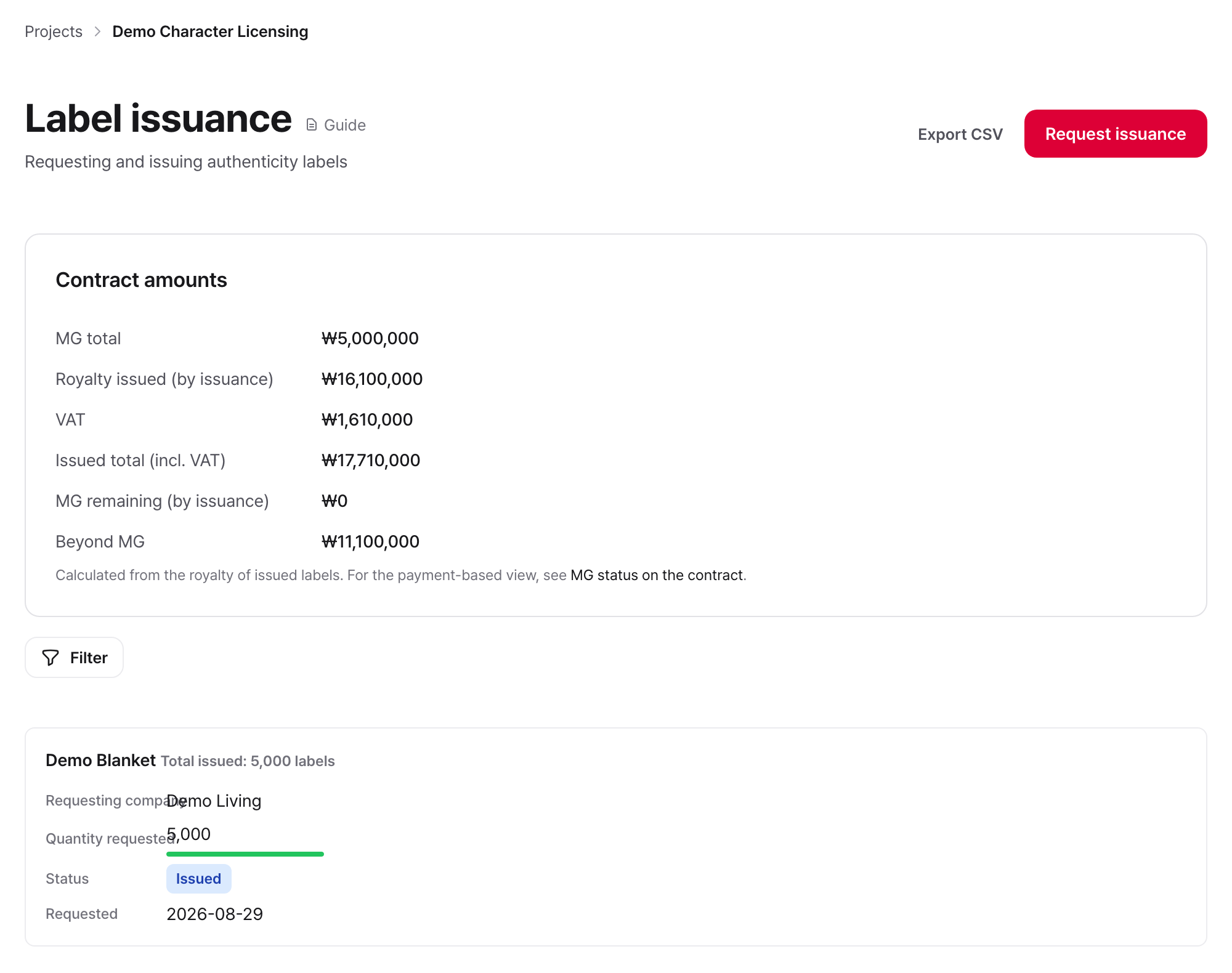
Counting how many labels you received and how many are left
What you received and what is left is recorded on the product
Digging a rejection reason out of your inbox to read it again
Rejection and revision reasons stay with the approval
What you can do
1
Register the product
Register a product in a project your company joined. Enter the name, the IP it uses, the product type and the price. The IP field can stay empty, in which case the contract's base rate applies.
2
Request the approvals this stage needs
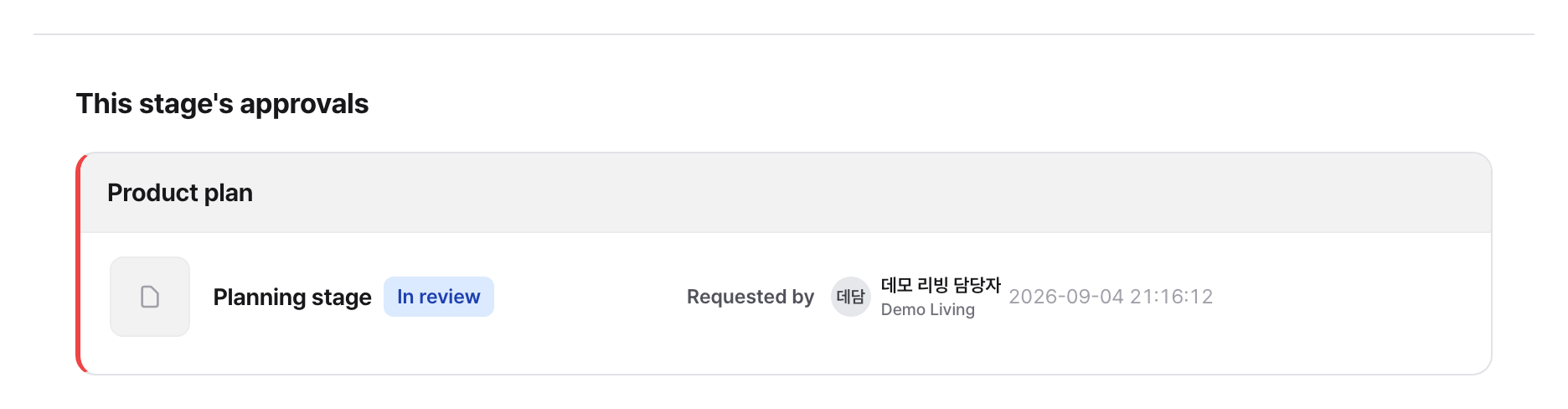
Open the product and you will see what this stage requires. Attach files and a description, submit, and the IP Provider's reviewer is notified. Progress shows in the same place while you wait, so there is nothing to chase.
A revision request or rejection leaves its reason on the product. Fix it and submit again; earlier submissions stay in the history, so which one is current is never in doubt.
4
Move to the next stage once approvals clear
When every approval for this stage is done, a button to move on appears. Nothing advances on its own. If the move is blocked, the reason shows beside it, so you can see what is left.
Once the product finishes the required approvals of the stages that open label requests, you can request labels. Enter the quantity and delivery details, and they are issued after approval. Save the address once and your next request fills it in.
You share one screen with Partners in other countries
The interface reads in Korean, Japanese, Chinese or English. A message the IP Provider wrote in another language opens in yours at the press of a button, and you can enter product names in your language too.