Getting Approval for Promotional Materials
Partner registers deliverables to be used for advertising or promotion, and IP Provider approves them.
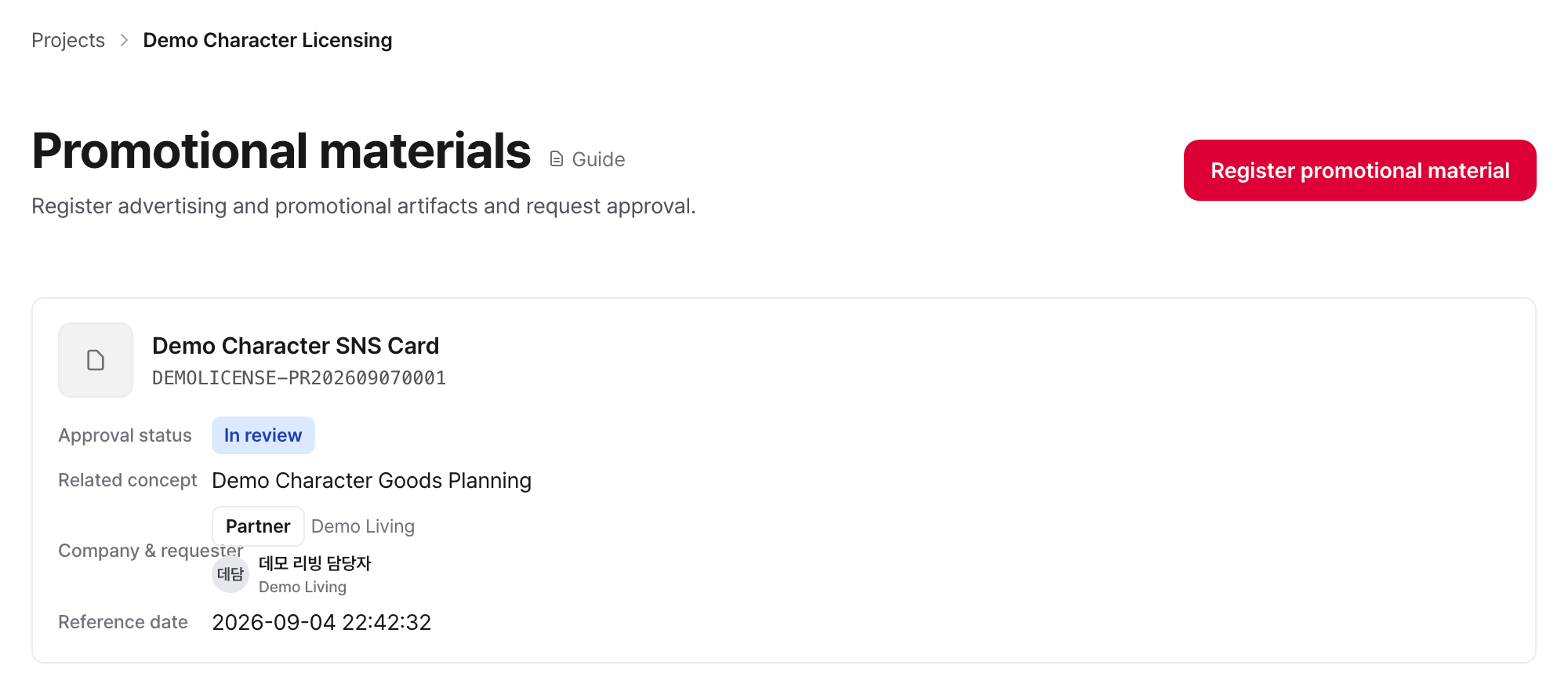
Partner
- Register the name, related Concepts (optional), description, and files in Promotional materials. Without a file you cannot request approval.
- Send Approval requests from the details page. A confirmation screen listing the files to be submitted appears; once you confirm, the description and files as they stand are saved as that round's submission.
- If it is Revision needed, open Revise and resubmit on the Promotional material detail, read the reason you received, edit the description and files on that screen, and submit again.
- While it is In review or Revision needed you can take the request back with Withdraw request. After withdrawal the request remains only as history and editing of the deliverable opens again.
The description and files are edited on the Promotional material detail. They do lock once the request is sent, though. They lock while it is under review, and open again once you receive a revision request or withdraw the request. Deliverables finished as Approved, Conditionally approved, or Rejected do not change. If something approved has to be submitted again, ask the IP Provider to cancel the approval; something rejected is registered as a new Promotional material.
There is one approval request per Promotional material. A new request is not stacked on a finished one. The same request's round goes up and it is submitted again. So the description and files you see on the approval detail are not what the Promotional material holds now, but what was submitted in that round. If you fixed the files and have not resubmitted yet, the approval detail still shows the previous submission.
A Promotional material that has sent an approval request even once cannot be deleted.
IP Provider
- Check the approval status, company/requester, and approval manager in the list, then click Review for approval.
- Only the current step assignee of the sign-off chain may act, and that person must also hold the Promotional material approval role.
- Without a sign-off chain, nobody can act. A workspace admin or that Project's project administrator assigns an assignee in the approval request detail, or sets the Default sign-off chain of the approval type. To change the current assignee, reassign from the approval request detail as well.
- For My assigned requests, approve, conditionally approve, request revision, or reject them in the approval details. All four require a reason written in the message composer.
A rejection cannot be reversed. Approval and conditional approval can be cancelled from the approval detail to return the request to In review, but that alone does not open the Partner's deliverable for editing. A revision request has to follow before it can be changed.
Since promotional material names and files are deliverables from the Partner, the IP Provider does not modify them directly.